-1.png?width=200&height=51&name=LM_NuBlu_Horiz_Hi%20(1)-1.png)
Important Note
A service group can only be associated one location at a time. If the service group you are editing already has a location assigned to it, you must first remove the old one before you can add a new one.
Step 1: Navigate to Service Groups
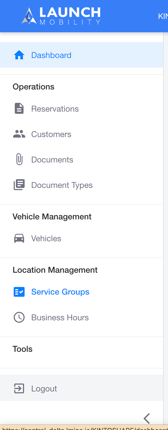
First, log in to Mission Control. Make sure you are in the Service View. In the left-hand navigation menu, select Service Groups, it's in the Location Management section.
This will take you to a list of all your active service groups.
Step 2: Select the Service Group
From the list, click on the name of the service group you want to edit. This will open the Service Group Details page.
Step 3: Edit Locations
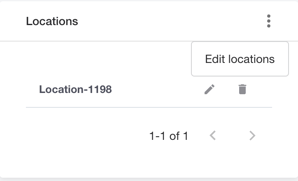
On the Service Group Details page, find the Locations widget. Look for the options menu (three vertical dots) in the top-right corner of this widget and click it. From the dropdown menu, select Edit Location.
Step 4: Add the New Location
A new window will appear, showing your available locations.
-
If the service group already has a location, you must first remove it by selecting the location in the Selected Locations section and click the delete button.
-
Once the field is empty, you can add a new location. Find the location you want to add on the list in the Available Locations section, select it and click the Add button.
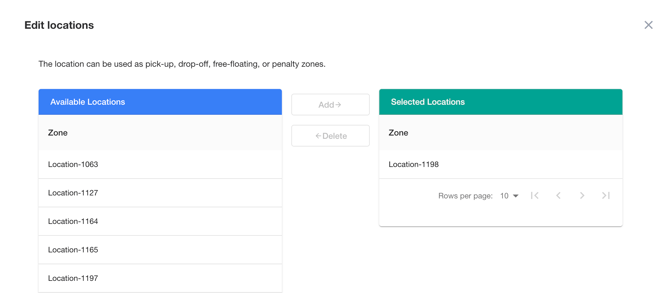
The system now recognizes that every vehicle that belongs to that Service Group is physically located at the newly associated location.