-1.png?width=200&height=51&name=LM_NuBlu_Horiz_Hi%20(1)-1.png)
This process ensures your inventory is accurate and active reservations are managed correctly.
Step 1: Log Into Mission Control
-
Log in using your Admin user and password
Step 2: Access the "Update Status" Option
You have two primary paths to access the status update window:
Option A: Via the Reservation Screen
-
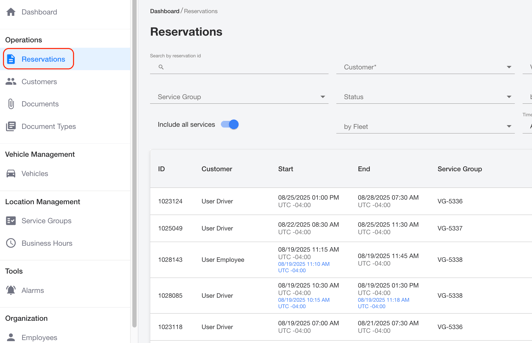
In the Mission Control menu, navigate to the Operations section and click Reservations.
-
Click the Reservation ID in the list that involves the vehicle you need to change.
-
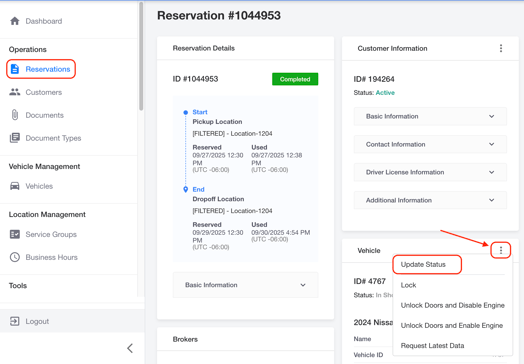
Locate the vehicle widget on the reservation details screen.
-
Click the three dots icon in the top-right corner of the vehicle widget.
-
Select "Update Status" from the dropdown menu.
Option B: Via the Vehicle List Screen
-
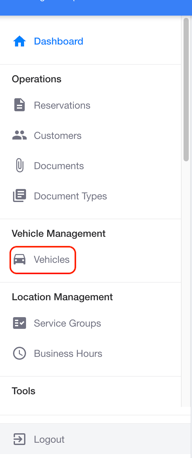
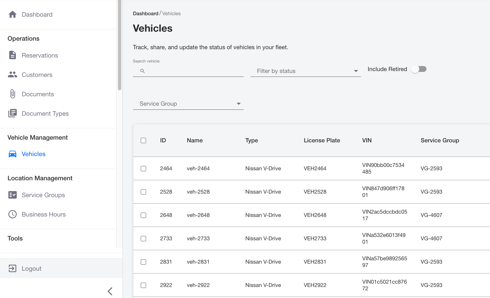
In the Mission Control menu, navigate to the Vehicle Management section and click Vehicle.
-
Click on the vehicle by selecting the check box, that you wish to modify. The system will display the Vehicle Details screen.
-
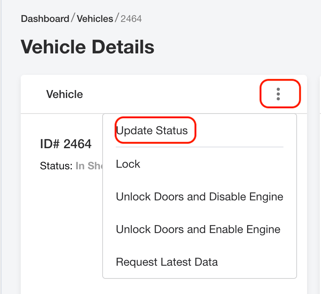
From there, find the vehicle widget and click the three dots in the top-right corner.
-
Select "Update Status" from the dropdown menu.
Option C: In Bulk Via the Vehicle List Screen
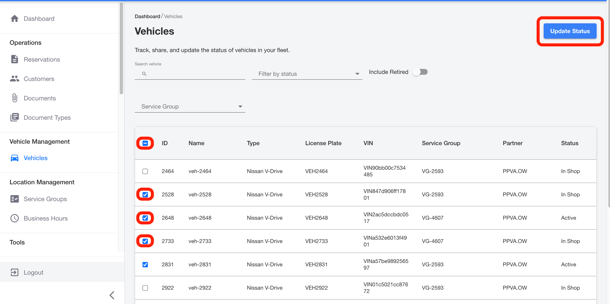
1. In the Mission Control menu, navigate to the Vehicle Management section and click Vehicle.
2. Select the vehicle(s) you wish to modify—either by clicking a single vehicle or checking multiple boxes. The system will then activate the Update Status button, allowing you to update the status of all selected vehicles in bulk.
Step 3: Configure the "In Shop" Status
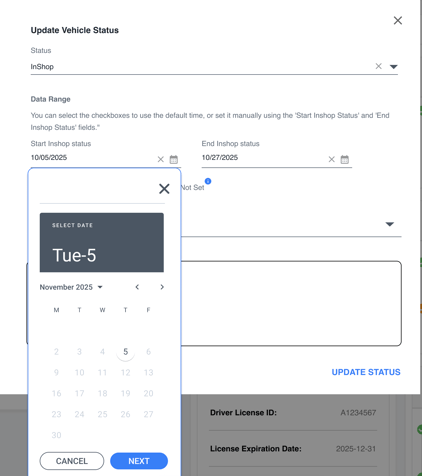
The "Update Vehicle Status" window will open. Here, you define the vehicle's temporary state:
-
Select Status: Choose "In Shop" from the status dropdown.
-
Define Date Range: The system allows you to override the default "Start Now" and "Return Date Not Set" options:
-
Date Range Message: "You can select the checkboxes to use the default time, or set it manually using the 'Start Inshop Status' and 'End Inshop Status' fields."
-
To set a Manual Start Date, uncheck the "Start Now" box and enter the specific date/time.
-
To set a Manual End Date, uncheck the "Return Date Not Set" box and enter the expected return date/time.
-
3. Provide Context:
-
-
Mandatory Action: Define the "In Shop" Reason
You must select a reason from the displayed dropdown list to categorize why the vehicle is being taken out of service.
-
Write a detailed Description in the box explaining the required work.
-
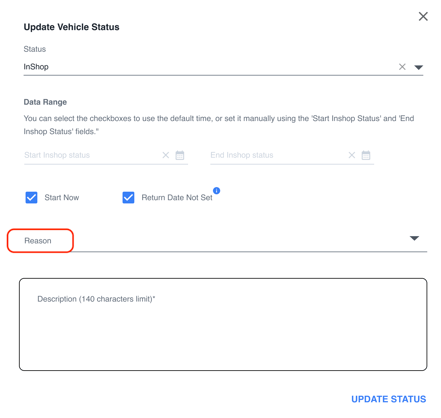
Click UPDATE STATUS.
Scenario A: No Reservations Attached
-
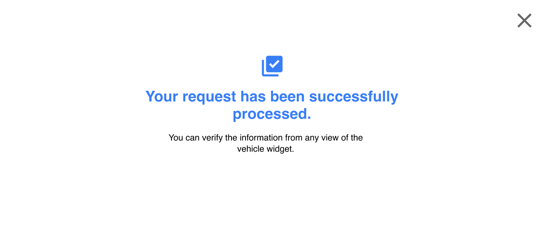
If the vehicle does not have any pending or active reservations attached, the system will immediately display the success confirmation message: "Your Request has been successfully processed."
-
The process is complete, and the vehicle is instantly marked as "In Shop."
Scenario B: Reservations Are Attached
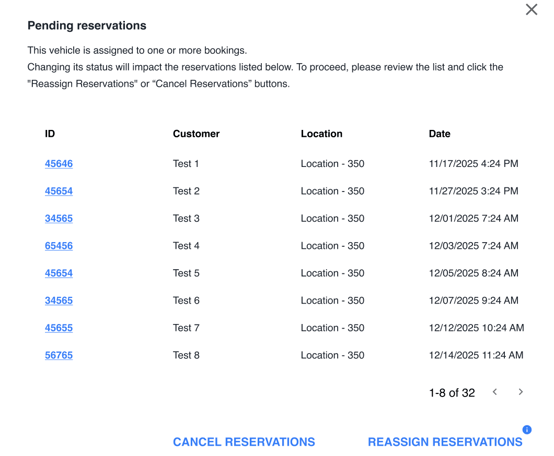
If the vehicle is assigned to upcoming reservations, the system will skip the simple success message and trigger the reservation handling process, starting with the Pending Reservations window pop-up.
Step 4: Review and Decide
The system warns: "This vehicle is assigned to one or more bookings. Changing its status will impact the reservations listed below. To proceed, please review the list and click the "Reassign Reservations" or “Cancel Reservations” buttons."
-
The list will display all affected reservations, sorted from the earliest start date to the latest.
-
You must choose one action for ALL reservations: Reassign or Cancel.
Step 5: Execute the Action (Reassign vs. Cancel)
Option A: Reassign Reservations
-
Click the "Reassign Reservations" button.
-
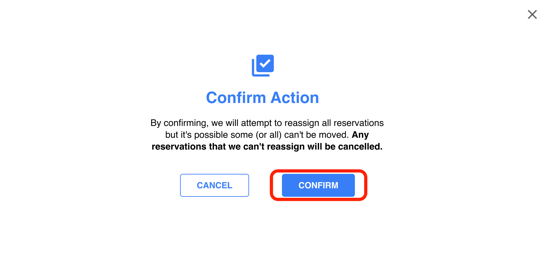
Confirmation Action Window: The system verifies: "By confirming, we will attempt to reassign all reservations, but it's possible some (or all) can't be moved. Any reservations that we can't reassign will be cancelled."
-
Click CONFIRM.
Option B: Cancel Reservations
-
Click the "Cancel Reservations" button.
-
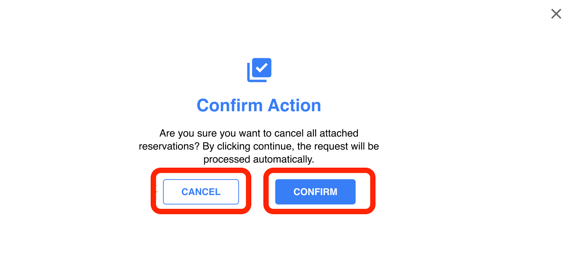
Confirmation Action Window: The system verifies: "Are you sure you want to cancel all attached reservations? By clicking continue, the request will be processed automatically."
-
Click CONFIRM to proceed, or CANCEL to return to the Pending Reservations window.
Step 6: Initial Confirmation and Tracking Link
After clicking the final CONFIRM, the system will display a processing message specific to your chosen action:
| If you decided to reassign Reservations... | If you decided to Cancel Reservations... |
|
"Your request is being processed." "We're trying to reassign the reservations. We will send you an email with the results as soon as it's complete. This process may take a few minutes." |
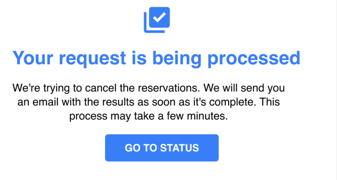
"Your request is being processed." "We're trying to cancel the reservations. We will send you an email with the results as soon as it's complete. This process may take a few minutes." |
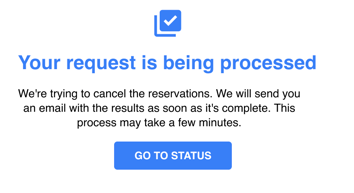
Click the "Go to Status" button to proceed to the live tracking page.
Step 7: Live Status Verification
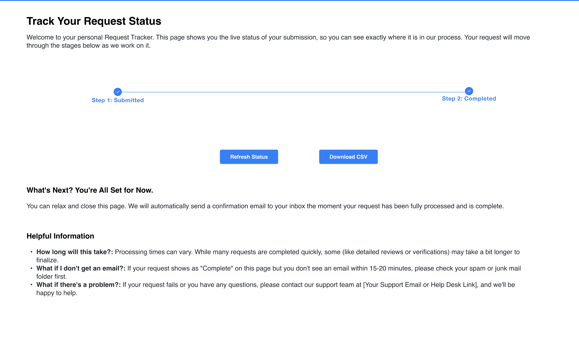
You will be directed to the Track Your Request Status page. This shows the live progress of your request:
-
STEP 1: Submitted
-
STEP 2: Completed
You have two options on this page:
-
Click "Refresh Status" to update the progress in real-time.
-
Click "Download CSV" when the status is completed.
Step 8: Receiving Final Notifications
Upon the process completing:
-
An email notification will be sent to the Admin account confirming the results. The subject of this email will be: "Your Request has been processed successfully."
The email contains a link allowing you to track the status and view the final results. From that page, you can also download the CSV report for a detailed reservation breakdown. -
Drivers will receive an email notification based on the action taken:
-
Reassigned Reservation: The driver will receive an email detailing their new vehicle assignment. The subject of the email will be: "Your reservation ID __ has been updated."
This email will provide the driver with the information on the new vehicle details, updated pickup/drop-off location, and revised start and end times. It also includes the necessary Web Reservation App URL.
b. Cancelled Reservation: The driver will receive an email notification. The subject of this email will be: "Your reservation ID __ has been cancelled."
-
The email confirms the cancellation of reservation ID. Its primary function is to direct the driver to immediately re-book a vehicle through the mobile app or web reservation app URL.
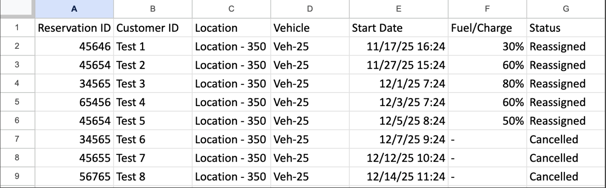
- The system will download a CSV file with detailed results.