-1.png?width=200&height=51&name=LM_NuBlu_Horiz_Hi%20(1)-1.png)
Creating a New Reporting Destination
To establish a new destination group, please follow the steps outlined below:
-
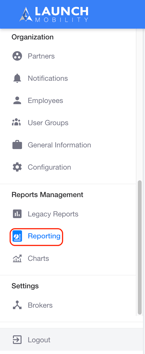
Within Mission Control, proceed to the Reports Management section and select Reporting. This action will direct you to the reporting list.
-
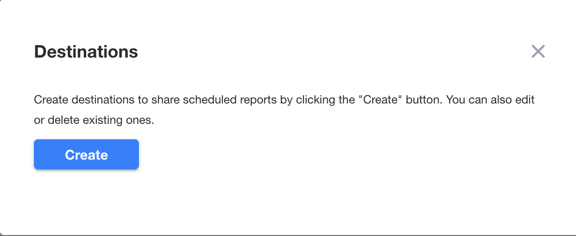
In the upper-right corner of the screen, click the "Destinations" button. A dialog box will appear, enabling the management of existing groups.

-
Within the dialog box, select the "Create" button.
-
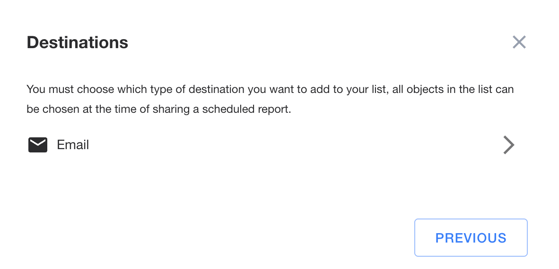
You will be prompted to choose a destination type from the provided list. The only available option at this time is EMAIL.
-
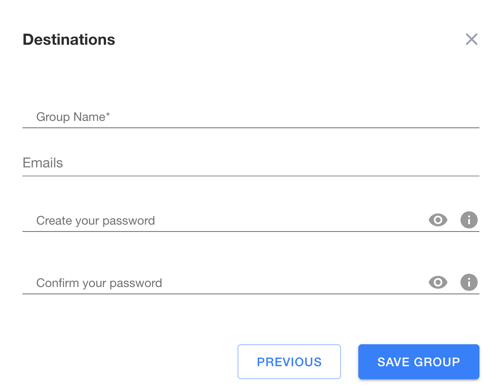
Upon selection, please complete the following fields:
-
Group Name: Assign a clear and descriptive name to the destination group.
-
Emails: Enter the email addresses of the intended recipients. Press the Enter key after each entry to add the address to the list.
-
Password: If the report is intended for recipients without Mission Control access, a password may be created and confirmed for secure delivery.
-
-
Save the Group: Conclude the process by clicking the "Save Group" button to finalize the creation of the new destination.
Upon completion, the newly created destination group will be visible within the Destinations widget at the bottom of the dialog box.
Scheduling a New Report
Once a destination group has been established, you may proceed with scheduling a report for delivery to that group.
-
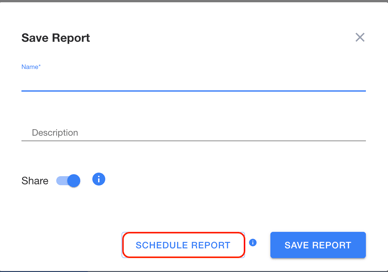
When preparing to save a new report, navigate to the Save Report Widget.
-
Click the "Schedule Report" button. This will present options for selecting the time and frequency of the report delivery.
-
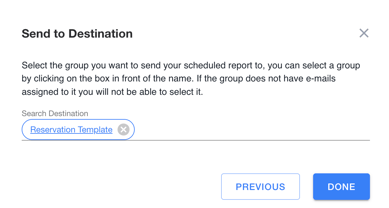
Below the scheduling options, a list of available destination groups will be displayed. To select a group for the scheduled report, click the checkbox adjacent to its name. Note that a group cannot be selected if it has no email addresses assigned.
-
After making your selections, click the "Done" button to save and schedule the report.
The report will now be automatically sent to the chosen destination group in accordance with the specified schedule.