-1.png?width=200&height=51&name=LM_NuBlu_Horiz_Hi%20(1)-1.png)
This is the final step in the vehicle configuration process. Assigning a vehicle to a service group places it into the "operational package" you've configured, which contains all the rules for how that vehicle will be used.
By completing this step, the individual vehicle inherits all the rules for location, pricing, and availability from the service group. It officially joins the pool of assets that can be automatically assigned to reservations. Before you begin, ensure the vehicle has been assigned to the overarching service that the service group belongs to.
Instructions
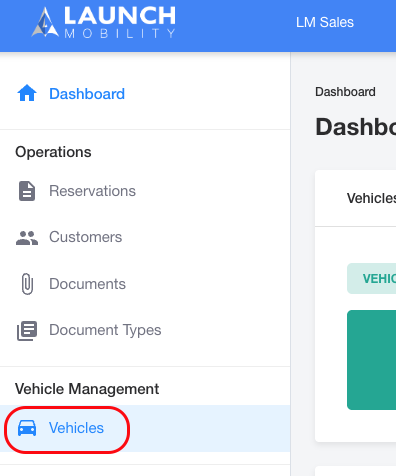
1. In Mission Control, navigate to Vehicles.
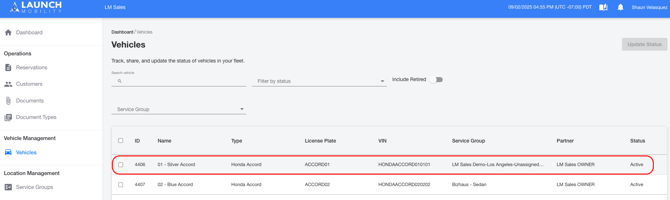
2. Select the vehicle you wish to assign from the list to open its profile page.
3. On the vehicle's profile page, locate the Service Groups section.
Note: For new vehicles, this will appear as "Unassigned".
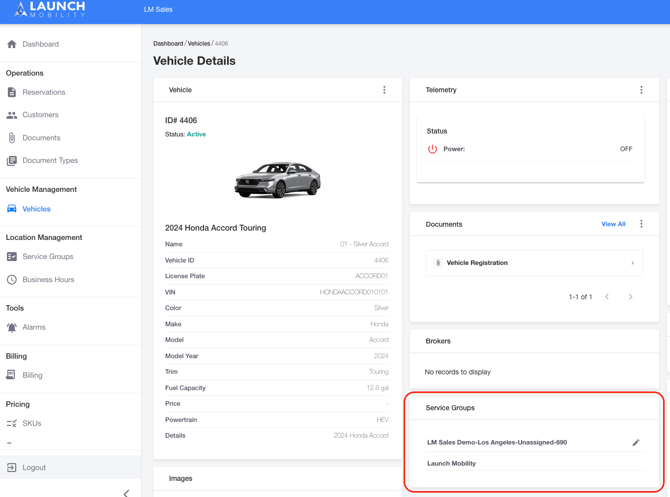
4. Click the edit icon next to the Service Group assignment.
5. Select the desired Service Group from the drop-down menu.
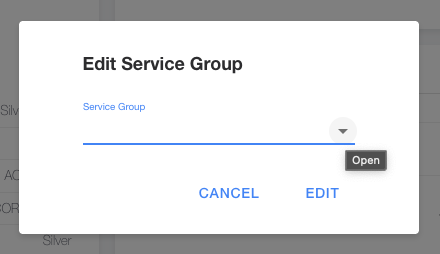
6. Click the Edit button to confirm and save the assignment.
Important Note:
Want to move the vehicle to a different location? No problem—just follow the same steps as above. Simply find the Service Group for your new location, update the assignment, and you’re all set!
Vehicle Setup Complete! What's Next?
Congratulations! You have now completed the entire vehicle setup process. By assigning the vehicle to a Service Group, it has inherited all the necessary rules for location, pricing, and availability. It is now part of an operational pool, ready to be made visible to your drivers.
The final phase of setup is to control who can see and reserve these vehicles. You will do this by configuring User Groups and granting them access to the Service Groups you've built.