-1.png?width=200&height=51&name=LM_NuBlu_Horiz_Hi%20(1)-1.png)
After a vehicle's status has been set to Active, the next step is to assign it to a Service. Think of a service as a specific business unit or customer-facing operation within your organization.
This action makes an active vehicle eligible to be used within that service. An administrator has control over which vehicles are available to each service, ensuring the right assets are available for the right operation.
Instructions
Before you begin, ensure the vehicle you wish to assign has its status set to Active.
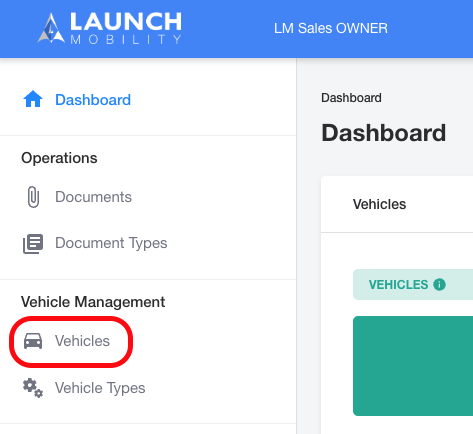
1. From Owner view in Mission Control, navigate to Vehicles in the navigation menu.
2. Select the vehicle you want to assign from the list to open its Vehicle Details page.
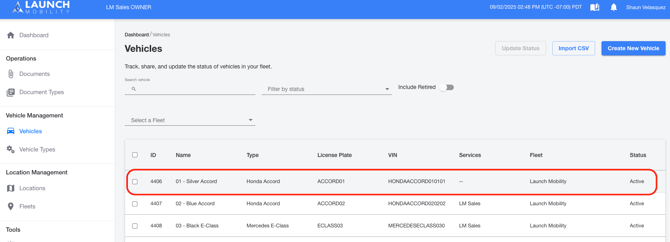
Note: You can tell which service a vehicle has been assigned to in the Services column on this page.
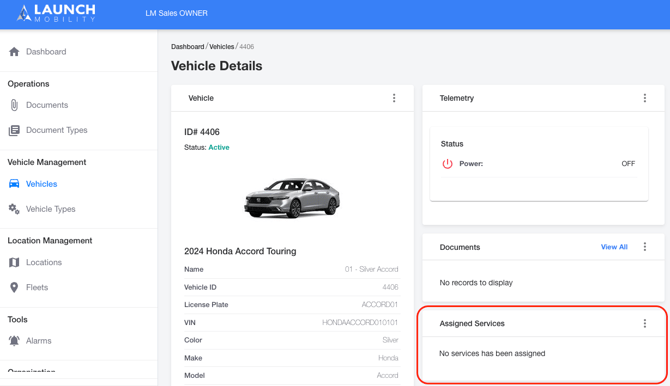
3. On the details page, locate the Assigned Services section.
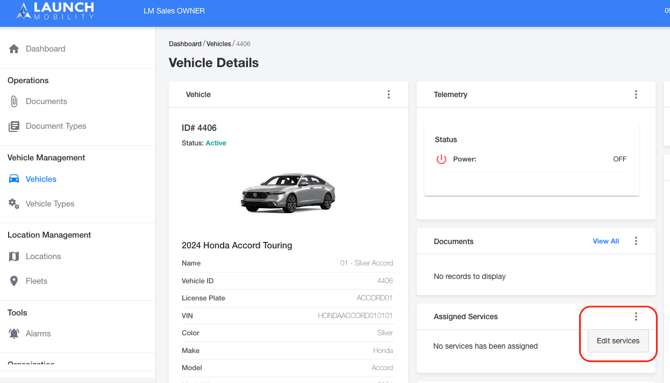
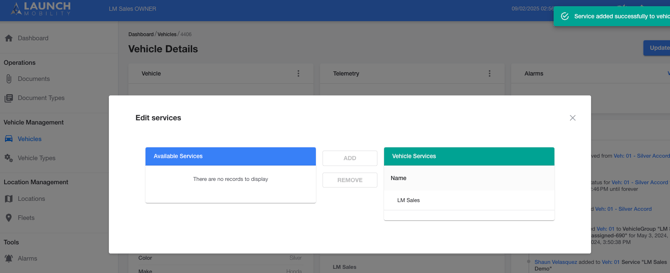
4. Click the menu icon (three dots) and select Edit Services.
5. In the pop-up window, select the desired service from the Available Services list and click the Add button. The service will move to the assigned list.
Vehicle Assigned! What's Next?
Your vehicle is now successfully assigned to a service, making it eligible for reservations. However, to make it visible to drivers and apply specific rules like pricing and location, you need to organize it into a smaller, manageable pool.
The next step is to Create a Service Group. Service Groups are how you segment vehicles within a service, often by vehicle type and home location, allowing you to control exactly how they are offered to your customers.