-1.png?width=200&height=51&name=LM_NuBlu_Horiz_Hi%20(1)-1.png)
Step 1: Check the New Vehicle's Availability
Before assigning a new vehicle, an administrator must first verify that it is available and does not have another reservation scheduled that would conflict with the new assignment. This is a critical step to ensure that the vehicle change doesn't create a new conflict.
Step 2: Navigate to the Reservations Menu
The administrator must be in the Service View to access the reservation management tools.
-
From the main Mission Control dashboard, go to the Operations section.
-
Click on the Reservations menu. This will display a comprehensive list of all current reservations.
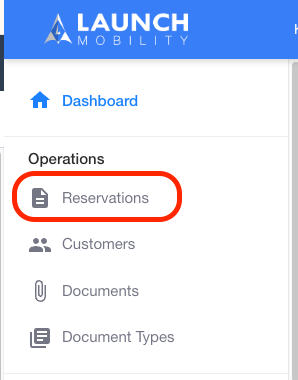
Step 3: Select the Affected Reservation
Select the specific reservation that requires a new vehicle to be assigned to it. You can use search and filter options to find it quickly within the Reservation List.
Step 4: Change the Vehicle
-
Once you're on the detailed reservation information screen, look for and click the "Change Vehicle" button, which is located in the upper right-hand corner.
-
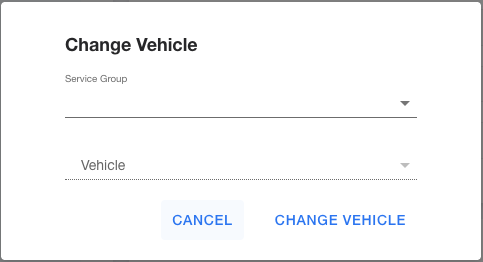
A "Change Vehicle" window will appear.
-
In this window, you will need to select the Service Group and then choose the new vehicle from the list of available options for that specific reservation time.
-
Once you have selected a vehicle, click on the "Change Vehicle" button to confirm the action.
Step 5: Final Confirmation
Mission Control will process the change and assign the new vehicle to the reservation. After this is complete, a configurable alarm email can be automatically sent to both the admin and the driver to notify them of the change. The administrator should confirm the new vehicle assignment with the driver to ensure they are aware of the update.