-1.png?width=200&height=51&name=LM_NuBlu_Horiz_Hi%20(1)-1.png)
Booking a vehicle in the mobile app is a simple process. This guide will walk you through every step, from filtering your search to confirming your reservation. Before you begin, make sure you have successfully logged into the app on your mobile device.
Step 1: Start the Reservation
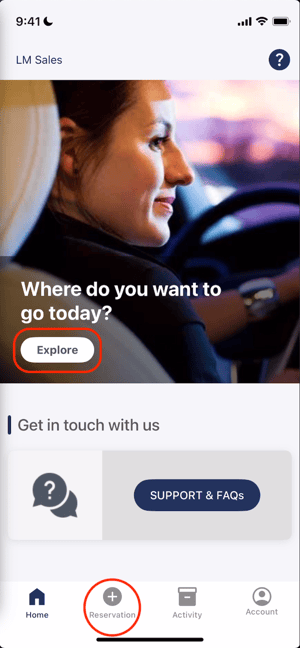
You can start a new reservation in two ways from the app's homescreen: tap the large Explore button in the center of the screen, or tap the Reservation icon (+) in the bottom navigation bar.
Step 2: Set the Date and Time
You will be taken to the "Filter your search" screen where you will set your desired trip duration.
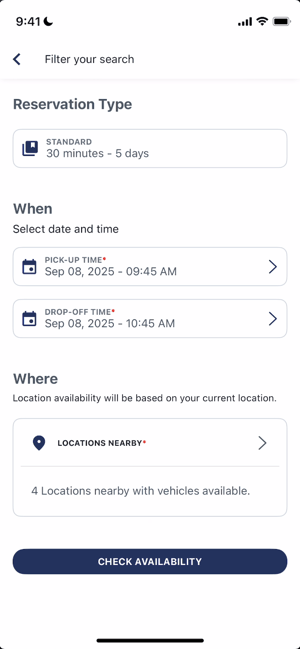
- Tap the PICK-UP TIME field to adjust your start time. A calendar will appear to let you select the date, followed by a time-picker wheel to set the exact hour and minute.
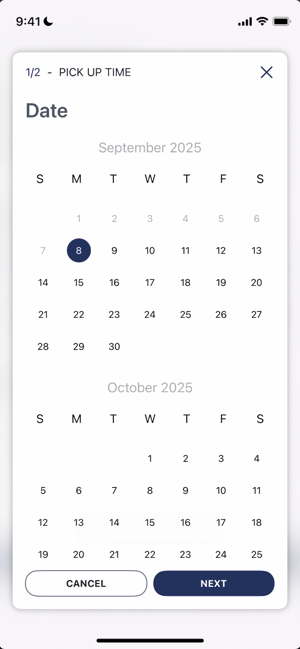
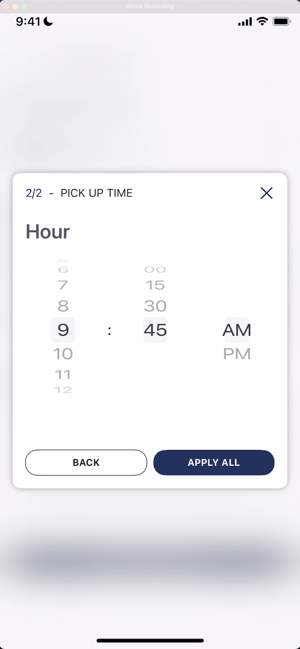
- Tap the DROP-OFF TIME field and repeat the process to set your return time.
Step 3: Select a Location
In the "Where" section of the "Filter your search" screen, tap Locations Nearby.
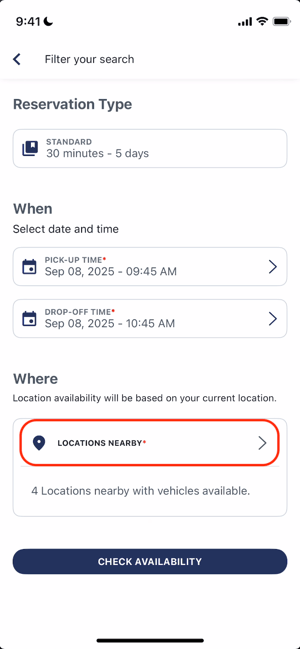
This will open a map showing available vehicle locations. You have several ways to choose a location:
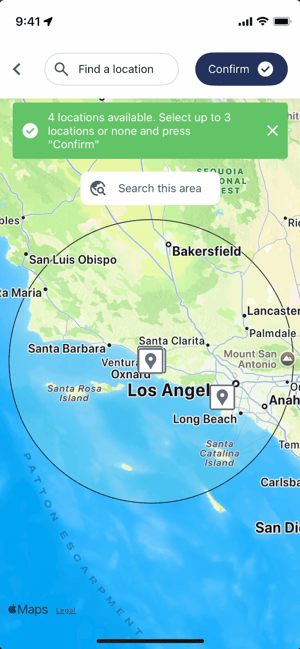
- Select All Nearby: The map automatically displays locations within a 95-mile radius. Simply tap the Confirm button at the top to include all of them in your search.
- Choose Specific Locations: Tap individual pins on the map (you can select up to three).
- Search by Name: Use the Find a location search bar at the top to find a location by its specific name.
- Search a Different Area: Manually drag the map to a new area and tap the Search this area button to find locations there.
Once your selection is made, you will be returned to the "Filter your search" screen.
Step 4: Check Availability
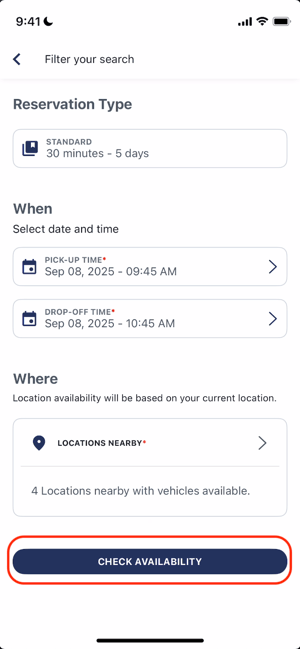
Back on the "Filter your search" screen, give your selected time, date, and location a final review. When you are ready, tap the CHECK AVAILABILITY button at the bottom of the screen to see your results.
Step 5: Choose Your Vehicle Option
The Results screen will show you a list of available options that match your search, sorted by distance.
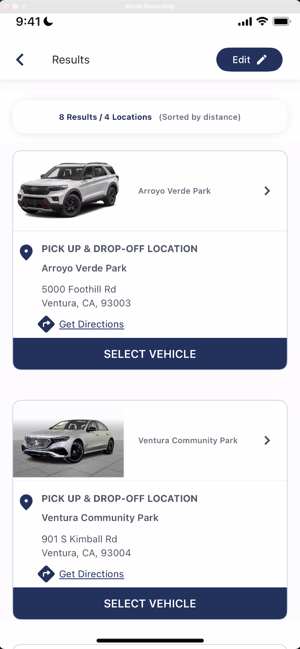
Each result represents an available category of vehicle at a specific location. You are not selecting a specific car, but rather a type of vehicle from that location's pool. The system will assign you a specific vehicle later.
Review the options and tap SELECT VEHICLE on the one that best fits your needs.
Step 6: Confirm Your Reservation
This is the final confirmation screen. Carefully review all the details of your trip, including the vehicle category, pick-up/drop-off location, and times.
If you need to make a change, tap the Edit button at the top of the screen.
Before confirming, you must check the box to agree to your organization's terms of service and privacy policies.
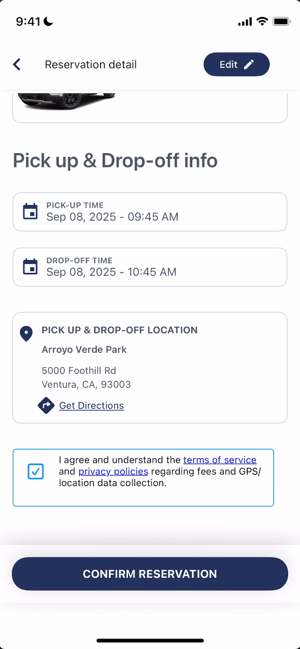
Tap CONFIRM RESERVATION to complete your booking.
What's Next?
Congratulations, your reservation is booked! You will see it appear in the Active tab of your Activity screen.
The next step is to prepare for your trip and check in to your vehicle.
➡️ See our guide: [How to Start Your Reservation (Check-In)]