-1.png?width=200&height=51&name=LM_NuBlu_Horiz_Hi%20(1)-1.png)
A Vehicle Type acts as a blueprint for the vehicles in your fleet. Before you can add individual vehicles with unique VINs and license plates, you must first create a template that defines their shared characteristics, such as the year, make, model and fuel capacity. This article will guide you through creating these essential templates.
Instructions
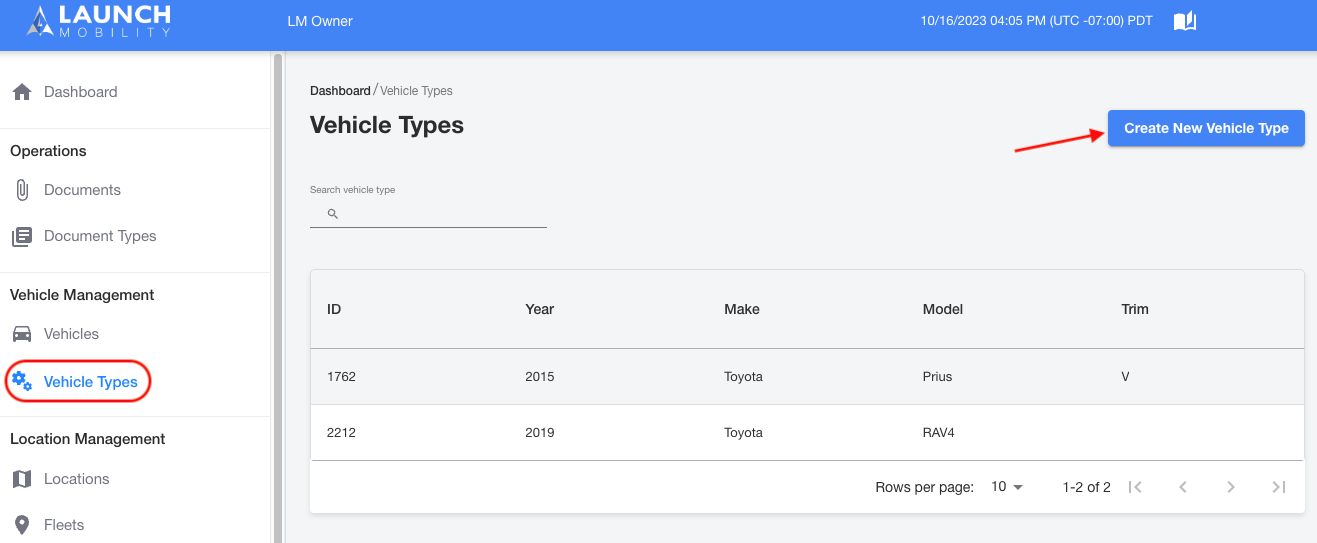
1. In Owner view, select Vehicle Types in the navigation menu.
2. Select Create New Vehicle Type.
3. Fill out the form with your vehicle type details, this will include year, make and model.
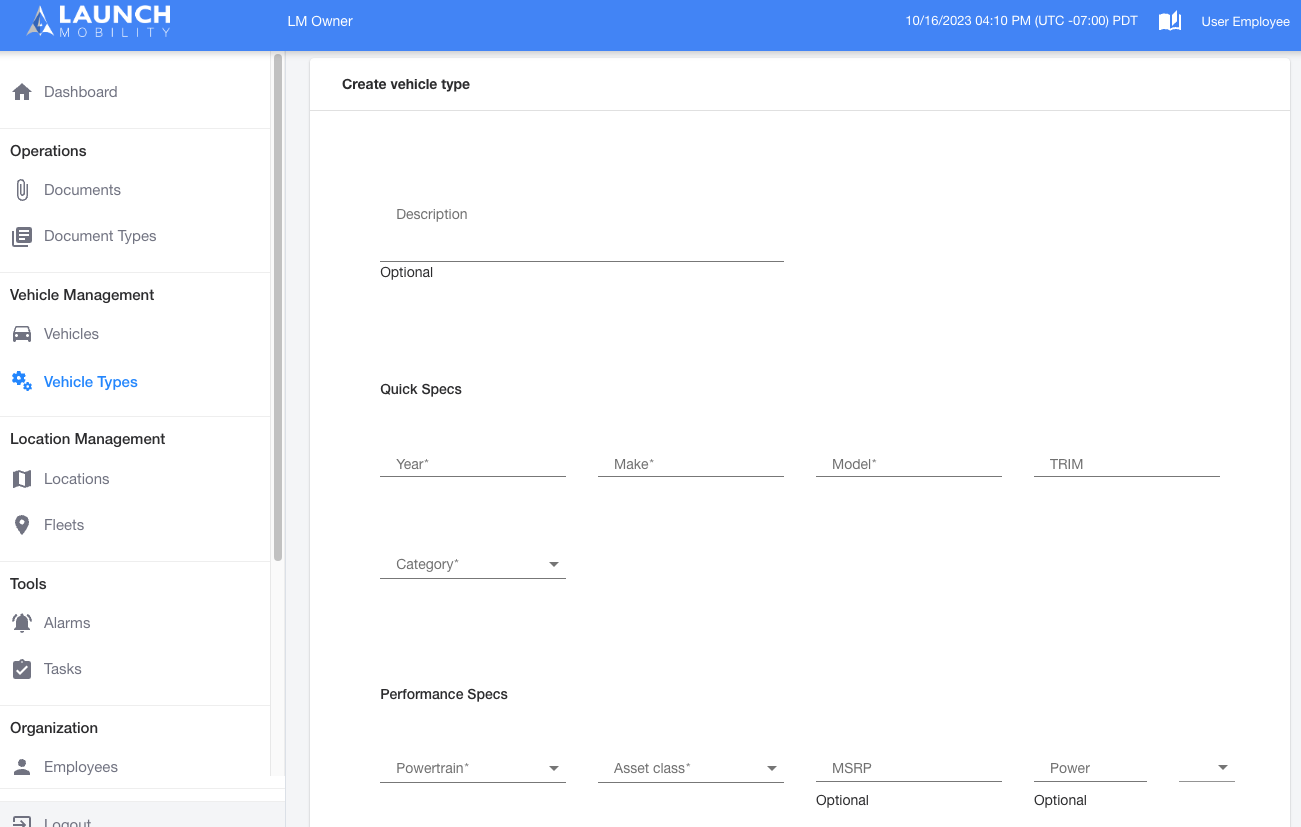
Quick Specs Section Note: You can categorize your vehicles as you see fit. Select Add a New Category in the Category dropdown list and enter a category of your choosing. As an example you can enter car, SUV or truck. You'll only need to do this the during initial set up, once you've created a category it will populate on this list. This is a reportable field so you can sort by category once you extract your data.
Performance Specs Section Note: If you select any of the options below from the dropdown, the Engine Specs section will appear. It is very important to enter an accurate fuel capacity. This will ensure accurate telematics readings with regards to fuel levels.
- Hybrid
- Gasoline
- Plug-In Hybrid
4. Once all of this information has been filled out, select Save.
Vehicle Type Saved! Now, Create Your Vehicles
You've successfully created a vehicle type, which acts as a blueprint for your fleet. Now that you have this template, you can proceed with the next logical step: creating the individual vehicles. The next article will show you how to add specific vehicles, link them to the vehicle type you just created, and enter unique information like a license plate and VIN.