-1.png?width=200&height=51&name=LM_NuBlu_Horiz_Hi%20(1)-1.png)
- Log into Invers and search for the vehicle using the unitID

- Go to the configure option
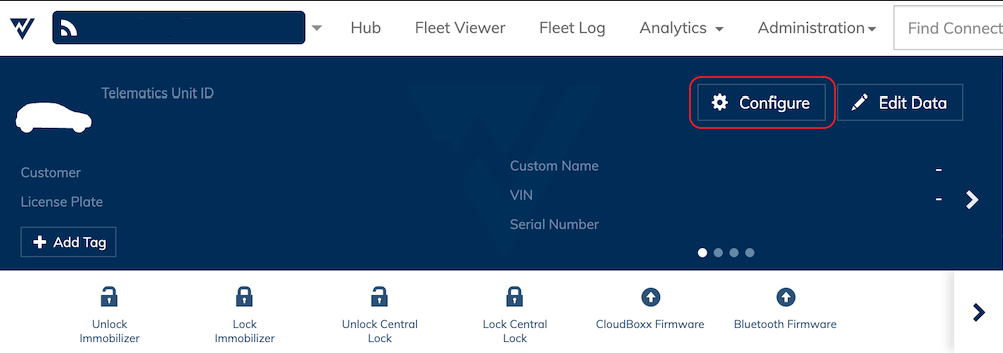
- That should open the cloudboxx configuration, in there you can see a list of parameters and 2 columns, 'Current Value' and 'New Value'.

- Scroll down until you find the 'Tracking' option

You must validate that in the 'Current Value' column the value for Tracking is enabled (check mark)
If that option is not enabled, you should follow the following steps:
- Check the radio button in the 'New Value' column

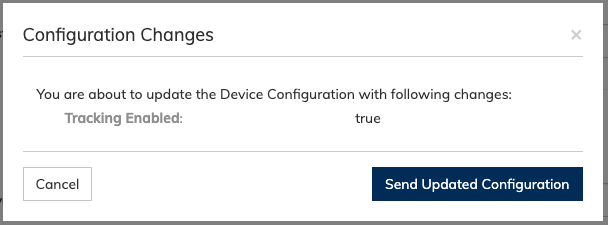
- Scroll down to the end, at the right side you click the button to update the configuration

- Confirm you want to apply the changes by clicking in the button
If you should have any further questions please reach out to your CX Team.