-1.png?width=200&height=51&name=LM_NuBlu_Horiz_Hi%20(1)-1.png)
The Mission Control platform is a comprehensive back-end management system designed to give administrators and fleet owners full oversight and control of all operations. It provides a powerful, centralized interface to manage vehicles, reservations, and customer-related services, ensuring smooth and efficient fleet management.
Dashboard and Views
Upon logging in, users are directed to the Dashboard, the central hub of the platform. The dashboard offers two primary views to provide a tailored experience:
-
Owner View: This view is for fleet owners and high-level administrators who need a strategic overview of the entire operation. It provides access to all administrative menus for managing assets and business rules, like locations, fleets, vehicles, vehicles types, etc.
-
Service View: This view is designed for operational and support staff. It focuses on day-to-day tasks related to customer service and reservations, providing quick access to essential tools like reservations information, customers, services groups, reservations rulesets, etc.
Important: If an employee requires access to both the Owner and Service views, you will need to send them two separate invitations, assigning them to the appropriate User Group for each view.
Once you have determined the appropriate access level for your new team member, you can begin the invitation process by following these steps:
Step 1: Navigate to the Employees Menu
First, log in to your Mission Control platform. On the main navigation panel on the left side of your screen, find and click the Organizations menu. From the options that appear, select Employees.
Step 2: Create a New Employee
On the Employees screen, you will see a list of all current team members. To add a new one, look for the "Create Employee" button, which is located in the upper-right corner of the screen. Click this button to begin the invitation process.
Step 3: Fill Out the Employee Form
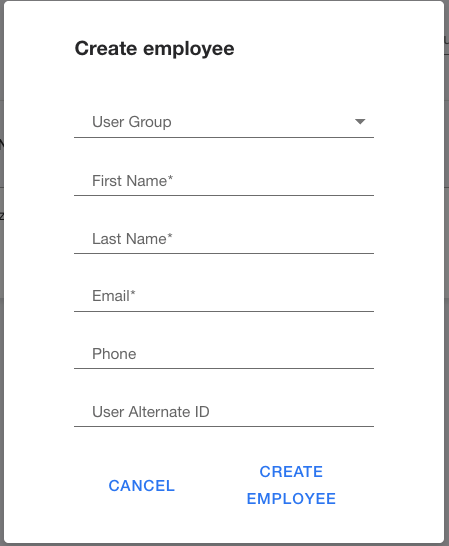
A new form titled "Create Employee" will appear. Fill in the following required fields:
-
User Group (required): Select a role from the dropdown list. This determines the new user's permissions and access level within Mission Control.
-
First Name (required)
-
Last Name (required)
-
Email (required): The employee's primary email address. This is where the invitation will be sent.
-
Phone: The employee's phone number.
-
User Alternate ID: An optional field for a secondary identifier.
Once all the fields are completed, click the "Create Employee" button at the bottom of the form.
Step 4: Invitation Sent
After you click the button, the system will automatically send an email invitation to the new employee. This email will contain a link they can use to set up their password and log in to Mission Control, granting them access based on the User Group you assigned.