-1.png?width=200&height=51&name=LM_NuBlu_Horiz_Hi%20(1)-1.png)
You have successfully set up your vehicles and organized them into Service Groups. This final phase of setup is about controlling who sees what in both Mission Control (for your team) and the mobile app (for your drivers). This is managed through User Groups.
User Groups are the final and most powerful link in the chain, connecting your people to your vehicles. They have two primary functions:
- Granting Vehicle Visibility: You will link a User Group directly to one or more Service Groups. This is the most important step and it controls which pools of vehicles a user can see and reserve.
- Assigning Roles & Permissions: Each User Group has a default role (e.g., Fleet Manager, Driver) that sets the permissions for its members.
This guide will walk you through the complete process of creating a User Group, granting it the correct visibility, and adding users to it.
Part 1: Create a User Group & Grant Service Group Access
This is where you will create a group and decide which vehicles its members can see.
1. In Mission Control, navigate to Organization > User Groups.
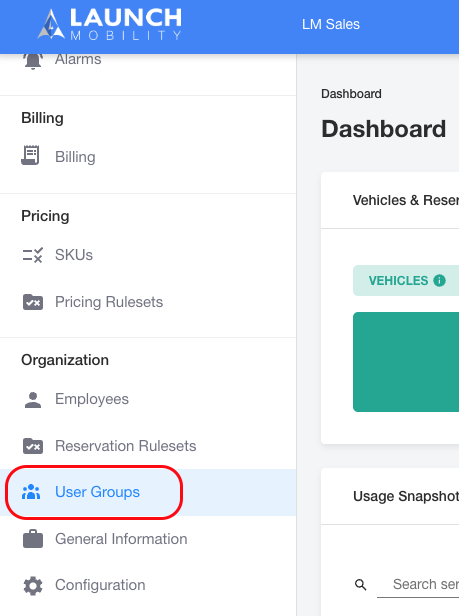
2. Click the Create User Group button.
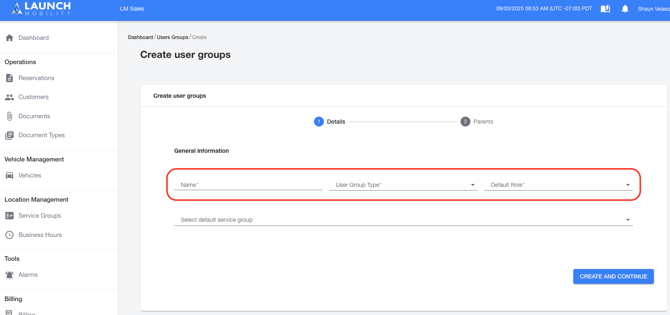
3. Fill in the initial details:
- Name: An internal name for the group (e.g., "Standard Drivers," "West Coast Fleet Managers").
- User Group Type: Choose either Employee or Driver.
- Default Role: Assign the default permission level for new users added to this group (e.g., Fleet Manager, Driver).
4. Assign Vehicle Visibility: In the field for selecting a vehicle or service group, choose the specific Service Group(s) you want this User Group to have access to. This is the crucial step that controls which vehicles members of this group can see.
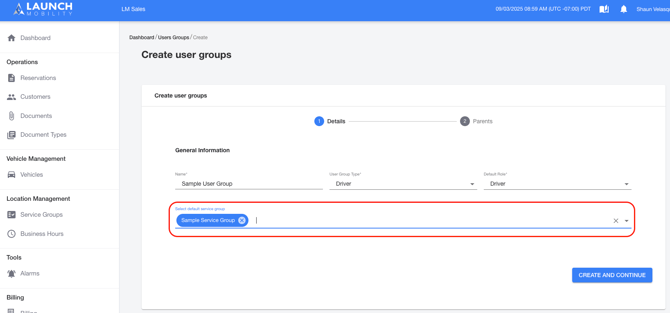
5. Click Create and Continue.
6. On the next screen, you can assign a Parent Group. By default, an admin Parent Group (e.g., an "Admin - LM Sales Demo" group) has visibility into the activities of the child group you are creating.
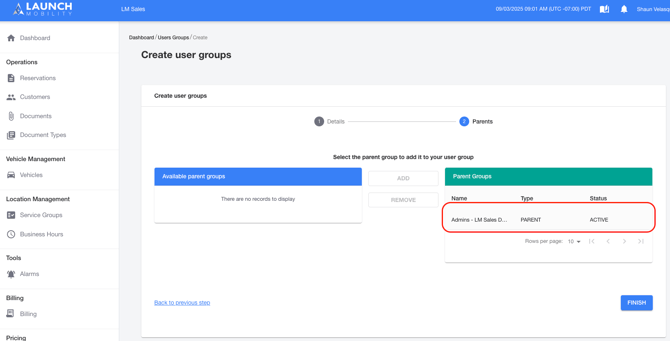
7. Click Finish.
Once the User Group is configured, you can assign individual users to it.
1. Navigate to Operations > Customers (or Organization > Employees for admins).
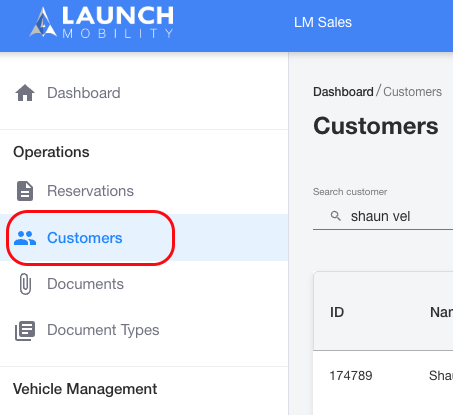
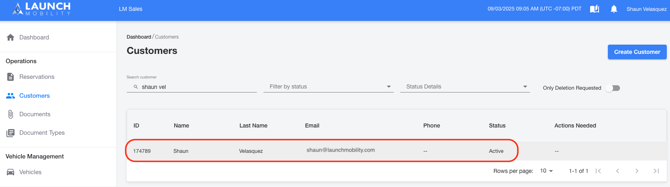
2. Select the user you wish to add to the group.
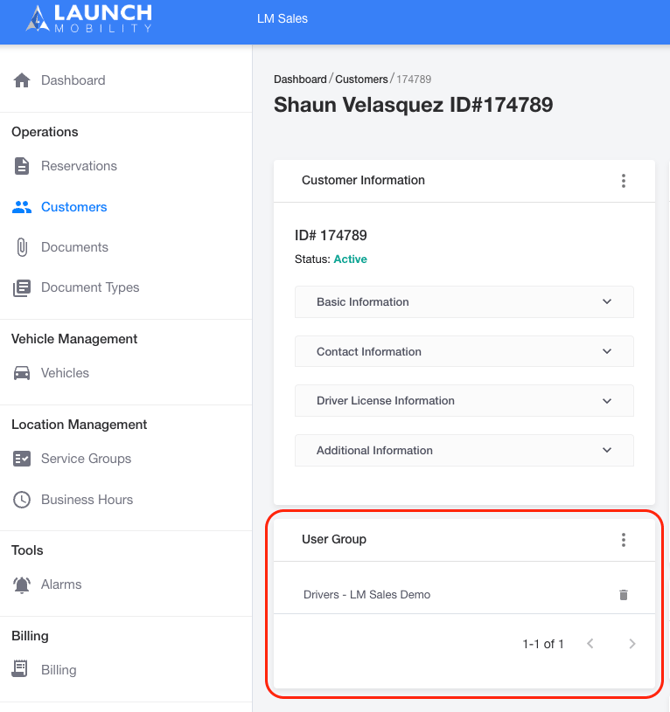
3. On the user's profile page, locate the User Group section.
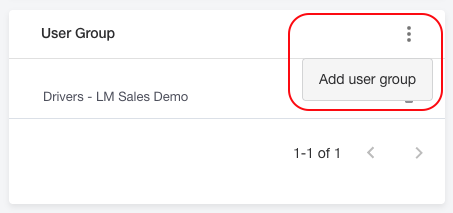
4. Click the three dots and select Add New User Group.
5. From the drop-down menu, select the User Group you just created.
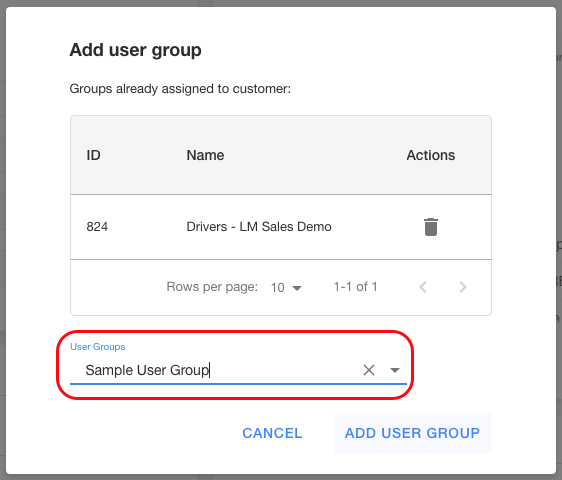
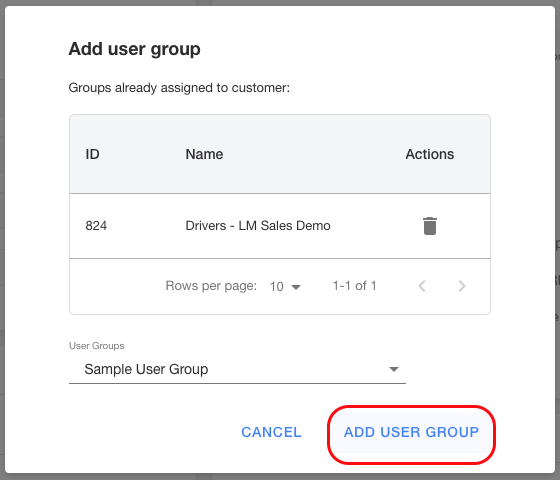
6. Click Add User Group to confirm. The user will now inherit the visibility and roles defined by that group.
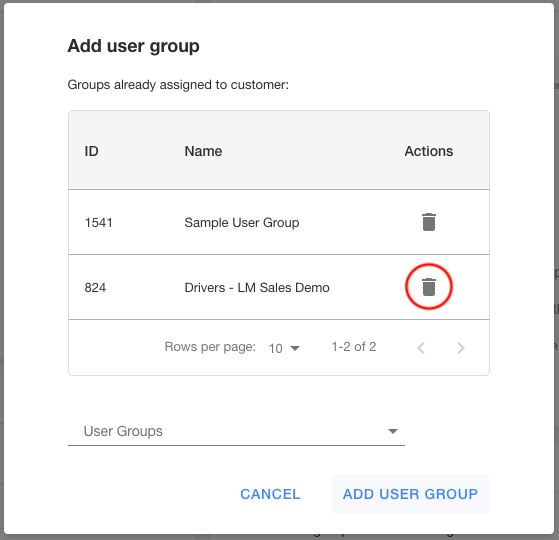
Note: If a user is already assigned to a User Group that needs to be removed, you must manually delete it from their profile. Click the trash can icon next to the group's name to remove the assignment.
Summary: Your Setup is Complete!
By creating User Groups, granting them access to the appropriate Service Groups, and adding your users, you have completed the full setup process. Your users now have the correct permissions, they can see the specific vehicles you've granted them access to, and your fleet is officially live and reservable in the app.