-1.png?width=200&height=51&name=LM_NuBlu_Horiz_Hi%20(1)-1.png)
Step 1: The User has an App Account
The first step is for the driver or customer to already have an account on the mobile app. It's essential that their account exists in the system before an administrator can send a confirmation link from the Mission Control platform.
Step 2: Accessing the Customer List in Mission Control
As an administrator, you'll log in to the Mission Control platform to view all pending and active user accounts. Follow these simple steps:
-
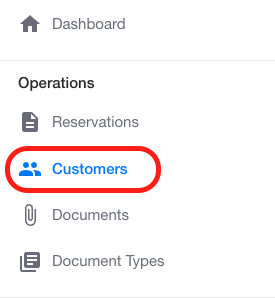
Navigate to the Operations menu on the left side of your screen.
-
Select the Customers option from the list.
This will take you to a comprehensive list of all users, where you can see their registration status.
Step 3: Sending the Confirmation Link
To activate the new user's account, you need to send them a confirmation link. This link will allow them to finalize their account setup.
-
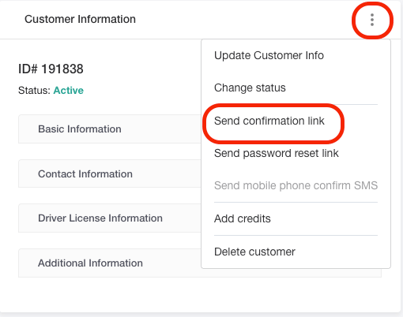
Find the user you wish to invite in the customer list and click their name to open their profile.
-
On the Customer Information screen, look for the three vertical dots (...) in the upper-right corner of the widget.
-
Click the three dots to reveal a dropdown menu and select "Send confirmation Link."
Step 4: Confirmation
After you've clicked "Send confirmation Link," a pop-up message will appear on your screen, confirming that the action was successful.
-
You will see the message: "The confirmation email was sent successfully."

The system has now sent an email to the user with a secure link to confirm their email address and complete their account setup. The user can now log in and start using the app.