-1.png?width=200&height=51&name=LM_NuBlu_Horiz_Hi%20(1)-1.png)
Step 1: Navigate to the Reports Section
First things first, you need to access the reporting tools.
-
Log in to your Mission Control admin account.
-
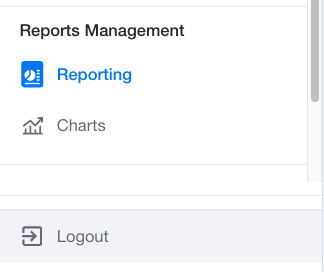
In the main menu, navigate to and select the Reports Management section.
-
Click on the Reporting menu to access the reporting list screen.
Step 2: Create a New Report
From the Reporting list screen, you have two options to begin creating your filtered report:
-
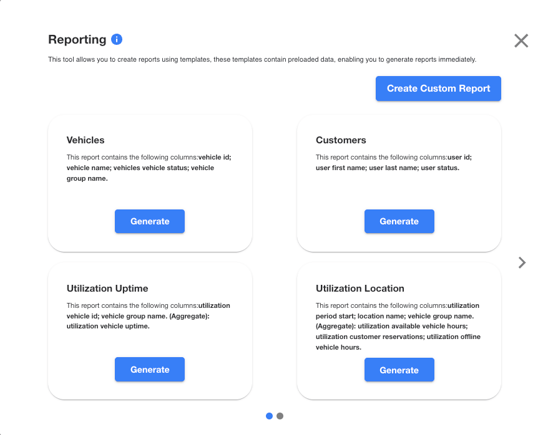
Create a Custom Report: Click on the "Create Custom Report" button to build a new report from scratch.

You will need to select a Report Type from the dropdown list to proceed.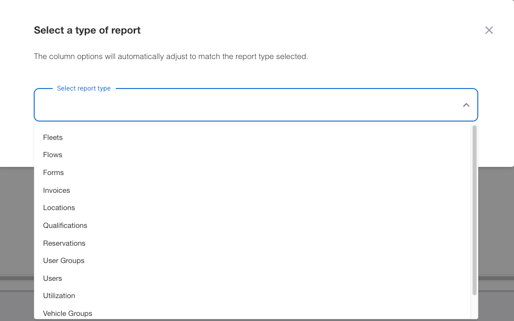
-
Use a Template: Alternatively, you can choose from one of the five available Template Reports. Selecting a template will take you directly to the Create Report screen, with a pre-configured report ready for your customizations.
Step 3: Apply Your Filters
Whether you chose a custom report or a template, you will now be on the Create Report screen. This is where you can refine your data using three powerful types of filters: Predefined, Custom, and Time.
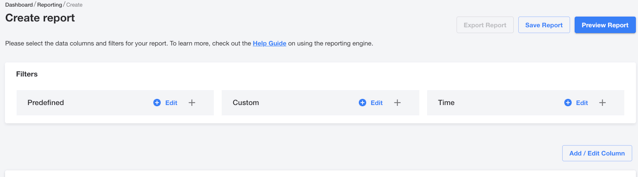
1. Predefined Filters
A predefined filter is a great way to quickly apply a common condition to your report. These are suggested conditions that help you segment your data in a logical and efficient manner. They are designed for commonly run reports, allowing you to instantly narrow your focus with a single click.
2. Custom Filters
For more specific data needs, a custom filter gives you full control. This filter allows the admin to set precise conditions to filter dimensions and measures according to defined values. You can create unique rules to analyze data exactly how you need to, providing unparalleled flexibility.
3. Time Filters
Need to restrict your report to a specific time period? The time filter is a convenient way to do just that. You can easily categorize your data by a specific time value, such as "last month," "this quarter," or a custom date range, to get a clear picture of performance over time.
Step 4: Save Your Report
Once you have applied your chosen filters—whether a Predefined, Custom, or Time filter—the final and most important step is to save your report.
On the screen, simply locate and click the "Save Report" button. This action will permanently store your report with all the filters you have configured, making it accessible for future use.