-1.png?width=200&height=51&name=LM_NuBlu_Horiz_Hi%20(1)-1.png)
Step 1: Check for Subsequent Reservations
Before making any changes, the administrator must first verify if the vehicle has another reservation scheduled immediately after the one being updated. This is a critical step to ensure that the time change won't cause a conflict or affect a future booking.
Step 2: Navigate to the Reservations menu
The administrator must be in the Service View to access the reservation management tools.
-
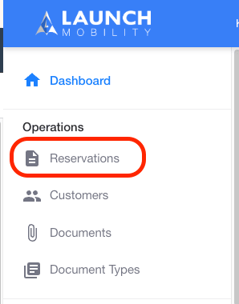
From the main Mission Control dashboard, go to the Operations section.
-
Select Reservations from the menu. This will display a comprehensive list of all current reservations.
Step 3: Select and Edit the Reservation
-
Locate and click on the specific reservation that needs to be updated. You can use search and filter options to find it quickly.
-
Once you're on the detailed reservation information screen, click the "Edit Reservation" button.

Step 4: Update the Time
-
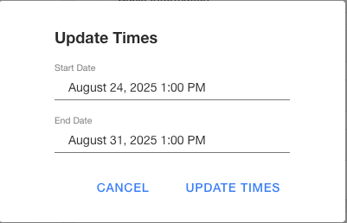
In the editing interface, you will find fields for Start Date and End Date, which include the specific times.
-
Modify these fields to the new start or end time as requested by the driver.
-
After making the necessary adjustments, click the "Update Times" option to save the changes.
Step 5: Final Confirmation
Mission Control will process the update, and the reservation will now reflect the new start and/or end time. A Reservation Updated alarm can be configured to send an email with all updated reservation details to the driver.