-1.png?width=200&height=51&name=LM_NuBlu_Horiz_Hi%20(1)-1.png)
Step-by-Step: Viewing NFC Card Details
Follow these steps to access an NFC card's comprehensive information in Mission Control:
-
After logging into Mission Control, go to the Operations module and select the "NFC Card" option.
-
You'll see a screen displaying a list of all registered NFC cards. Key details like ID, Serial Number, User ID, Card Name, Status, and Actions are visible here.
-
To view detailed information for a specific card, simply click on the NFC Card from the list.
-
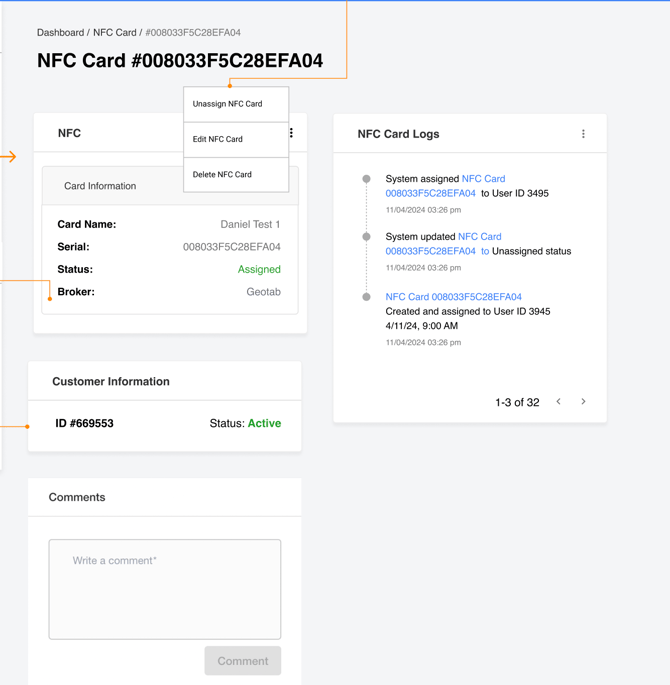
A new screen will appear, providing comprehensive details about the selected NFC card, including:
-
NFC Information: Such as the Card Name, Serial Number, current Status, and associated Broker.
-
Customer Information: Details of the linked customer, including their ID and status.
-
NFC Cards Logs: A complete log of the card's activity and usage history.
-
Managing NFC Cards (Unassign, Edit, Delete)
From the NFC card's detail screen, administrators have quick access to key management actions:
-
In the top right of the NFC Information widget, click the three-dot icon (•••).
-
A dropdown menu will appear with options to:
-
Unassign: Disassociate the NFC card from its current user.
-
Edit: Modify the card's details (e.g., name, serial number).
-
Delete: Permanently remove the NFC card from the system.
-
This detailed view gives you a complete overview of each NFC card's profile and operational history, along with the tools to manage them efficiently.