-1.png?width=200&height=51&name=LM_NuBlu_Horiz_Hi%20(1)-1.png)
For Admins (Inviting a User):
- Log into Mission Control: Ensure you are signed in as an admin.
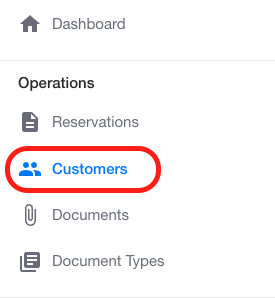
- Go to the Operations section from the service view, and select Customers .
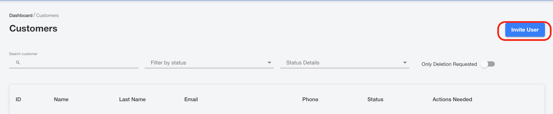
- Click the "Invite User" button.
- Fill Out the Invitation Form: Enter the required details:
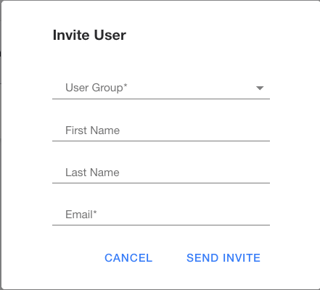
- User Group (required)
- First Name
- Last Name
- Email (required)
- Click "Send Invite" to send the email invitation.
For Drivers (Accepting the Invitation & Registering):
- The invited user will receive an email with an invitation to register.
- Install the mobile application on your device.
- Start the Sign-Up Process:
- Open the app and enter the email address where the invitation was sent.
- Tap "Next" to proceed to the Sign-Up screen.
- The invited driver can now continue and finish the full registration process.