
Overview
Release Buffer lets authorized users end a vehicle’s post-rental maintenance buffer early from Mission Control, so a vehicle that is ready can be booked again right away.
After a reservation ends, many organizations hold the vehicle in a maintenance buffer so cleaning, inspection and maintenance can be completed before the next booking. The buffer length comes from your organization’s settings, and until now it always ran its full length, even when the vehicle was ready sooner.
With this feature you can:
- Filter the Vehicles list to show only vehicles currently in buffer.
- Release one vehicle or several at once, after a confirmation step.
- See why a vehicle can’t be released before anything changes.
- Get email notifications and an audit trail for every release.
Where to find it and who can use it
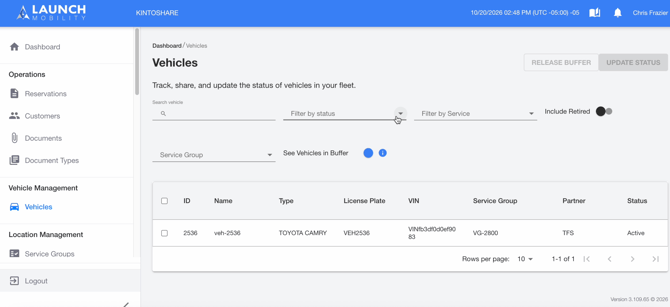
Release Buffer is on the Vehicles page in Mission Control, under Vehicle Management › Vehicles. Two controls drive the feature:
- See Vehicles in Buffer toggle. Turn it on to list only the vehicles currently held in a maintenance buffer. An info icon next to it explains what the buffer is.
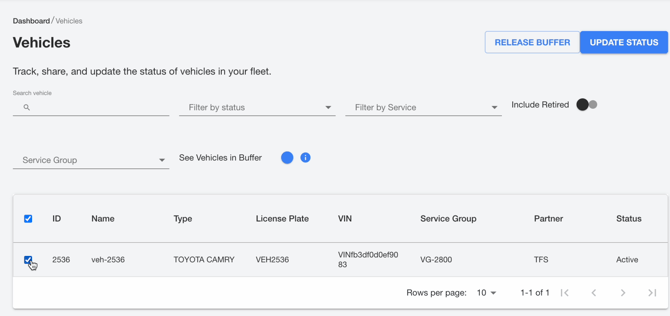
- Release Buffer button, next to Update Status. It stays grey until at least one selected vehicle is in buffer.
Access follows the permission to edit reservations: you can release a vehicle only if you are allowed to edit the reservations tied to it. Your organization decides which roles hold that permission. If you don’t see the toggle or the button, the feature may not be enabled for your organization yet; ask your administrator or contact LM Support.
Release Buffer is available in Mission Control (web).
Before Buffer Release
Releasing a vehicle makes it available for new reservations immediately and can’t be undone, so confirm these four things first.
- The vehicle is physically ready. Cleaning, inspection and maintenance are finished. Mission Control checks reservations, but it can’t know whether the vehicle is actually ready.
- No active reservation. No Driver or Employee reservation on the vehicle is in Reserved or In Progress status.
- The selection is exactly right. Re-read every ticked row before you confirm.
- You can receive the result email. The summary goes to the person who requested the release.
Release One Vehicle
Releasing one vehicle takes about a minute; the result arrives by email a few minutes later.
- In Mission Control, go to Vehicle Management › Vehicles.
- Turn on See Vehicles in Buffer. The list now shows only vehicles that are held.
- Tick the checkbox of the vehicle you want to release. Release Buffer turns blue.
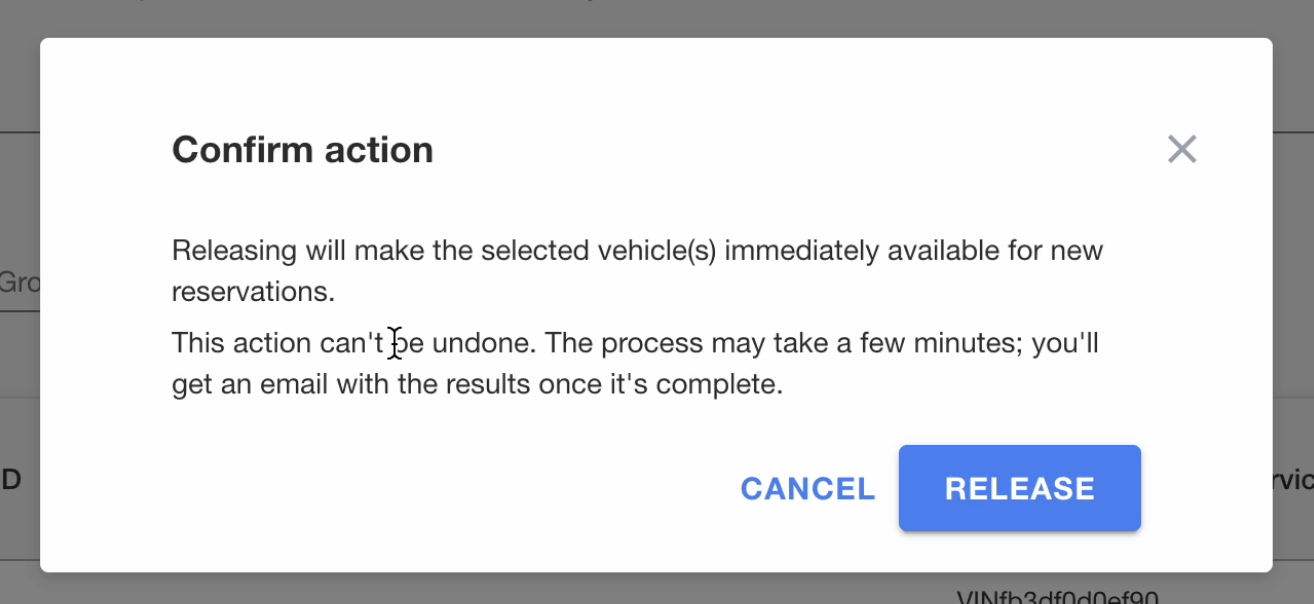
- Click Release Buffer. A Confirm action dialog opens; nothing has changed yet.
- Read the dialog, then click Release. A green “Release request sent” message confirms the request was accepted.
The dialog is the same for one vehicle or many. It reads: releasing will make the selected vehicle(s) immediately available for new reservations; this action can’t be undone; the process may take a few minutes, and you’ll get an email with the results once it’s complete.
Release Several Vehicles at Once
You can release multiple vehicles in a single request by selecting them together; the steps are the same as for a single vehicle.
- Tick each vehicle, or use the checkbox in the table header to select every vehicle on the current page. Select all only picks vehicles visible on the page, so filters and pagination still apply.
- Release Buffer is enabled when at least one selected vehicle is in buffer. The action applies only to eligible vehicles.
- One confirmation covers the whole selection.
- You receive one summary email that lists each vehicle as Released or Failed.
When a Vehicle Can’t be Released
Mission Control checks every selected vehicle when you click Release Buffer, and tells you which ones can’t be released before anything changes.
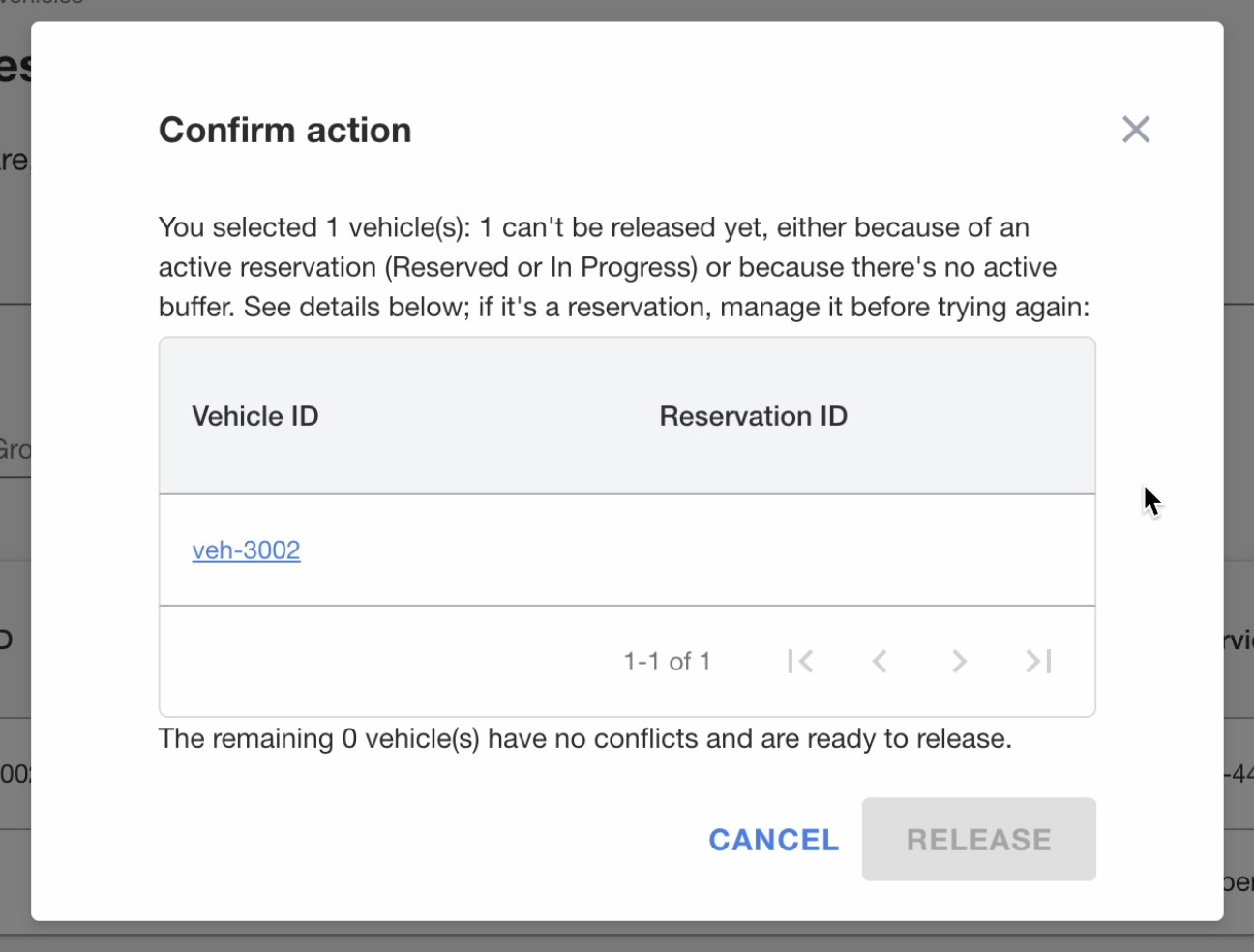
The Confirm action dialog shows how many vehicles you selected, how many can’t be released, and how many are ready. A vehicle is in conflict when:
- A Driver or Employee reservation on it is Reserved or In Progress, or
- It has no active buffer.
Vehicles in conflict are skipped and stay exactly as they are. Release stays enabled while at least one selected vehicle is ready, and turns grey when none is.
Clear a conflict and release again
- In the dialog table, click the Vehicle ID link to open the vehicle.
- Find the blocking reservation, using the Reservation ID if shown or the reservations panel on the vehicle page.
- Manage the reservation. If it is finished, end it (for example with End Reservation); otherwise wait for it to end. Only end a reservation that is really finished.
- Go back to Vehicles, select the vehicle, and release it again.
After released
The green message only means the request was accepted; each vehicle is then processed in the background, usually within a few minutes, and the results reach you in four places.
|
Where |
What you see |
Goes to |
|---|---|---|
|
Email: Maintenance Buffer Release Summary |
One email per request, listing each vehicle as Released or Failed |
The person who requested the release |
|
Email: Maintenance Buffer Release Update |
One email per vehicle with its status |
The destination configured for your organization |
|
Dashboard |
The vehicle’s buffer bar in the Reservation Calendar now ends at the current time, and the Event Log shows the alarm “Maintenance Buffer Released” |
Anyone viewing the dashboard |
|
Logs |
An entry on the vehicle (and on the affected reservation) saying who released the maintenance buffer |
Anyone who opens the vehicle or reservation |
Email subjects are generic and don’t say whether the release succeeded, so open the message. Vehicles marked Released are available for new reservations. For any vehicle marked Failed, retry the release in Mission Control.
logs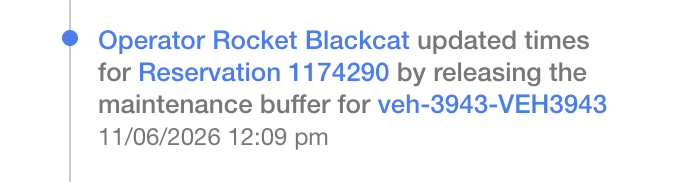
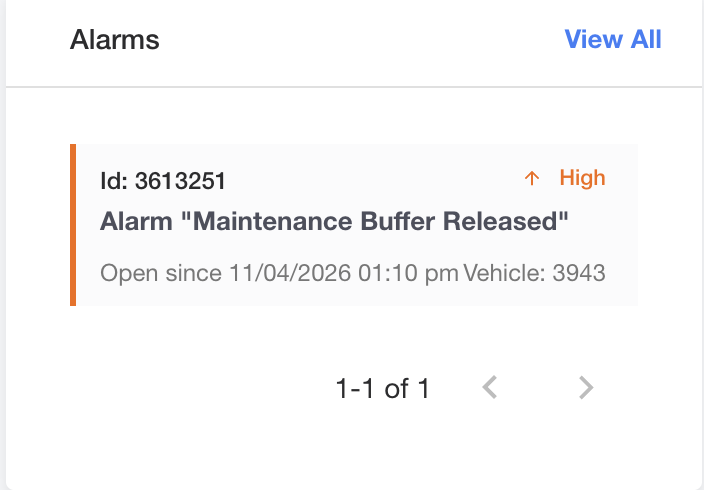
Important notes
A release can’t be undone, so treat it as a final step.
- No undo. Once released, the buffer can’t be restored from Mission Control.
- The vehicle’s status is not changed. Only the buffer hold ends.
- Bookable right away. New reservations can use the vehicle immediately. It gets no booking priority.
- Skipped means untouched. Vehicles in conflict keep their buffer until the blocker is cleared.
- Not instant. Processing takes a few minutes, so wait for the email before confirming to others that a vehicle is released.
- Known limitation. A reservation already in Reserved status may still show its original time limits after the release.
Troubleshooting and FAQ
Most problems come from a vehicle that is still in conflict or from a missing permission or setting.
|
What you see |
Likely reason |
What to do |
|---|---|---|
|
Release Buffer is grey |
Nothing is ticked, or no ticked vehicle is in buffer |
Turn on See Vehicles in Buffer and tick vehicles from that list |
|
The dialog says vehicles can’t be released |
A Reserved or In Progress reservation, or no active buffer |
Clear the conflict, then release again |
|
No email after a few minutes |
Still processing, or no destination is set for your organization |
Wait, check your spam folder, then check the vehicle log and contact LM Support |
|
A vehicle is marked Failed |
The release didn’t complete (no further detail is shown) |
Retry once; if it fails again, contact LM Support with the vehicle ID |
|
No toggle or button |
The feature is off for your organization, or you lack permission |
Ask your administrator to check the setting and your role |
Can I undo a release? No. Once released, the vehicle is available for new reservations.
Does releasing change the vehicle’s status? No. Only the buffer hold ends.
What should I send LM Support? The vehicle ID, the time of the release, who requested it, and the email you received, if any.