-1.png?width=200&height=51&name=LM_NuBlu_Horiz_Hi%20(1)-1.png)
Before You Begin: Essential Requirements
Make sure the following conditions are met before you try to generate the report:
-
You must be logged into Mission Control with an Administrator account or a role that has permission to generate reports.
-
The Cost Center feature must be enabled for your organization.
-
The driver must have already completed the reservation and selected a Cost Center during the Pre-End Requirement Qualification within the app
-
The Cost Center selection is a mandatory step immediately following the completion and end of the reservation (after passing the "vehicle lock" section). The driver will be presented with a search bar and a list of available Cost Centers. The list will appear after the driver types at least three characters.
If the specific Cost Center is unknown, the driver can select the "Unknown" option..
-
Steps to Create the Cost Center Report
Follow these simple steps to configure and get the information you need:
Step 1:
-
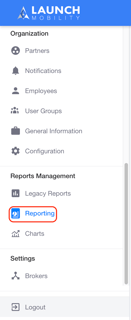
Go to the Reports section within Mission Control.
-
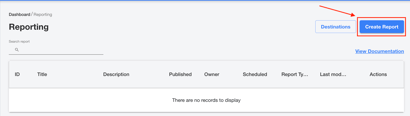
Click on the Create Report button.
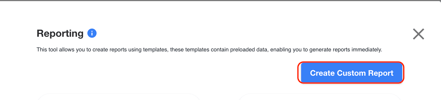
- Click on the Create Custom Report button.
Step 2:
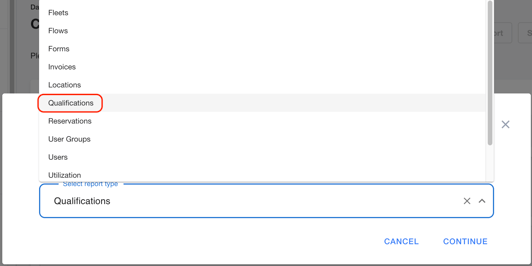
- For the Select a type of report window, select Qualifications report and then click continue
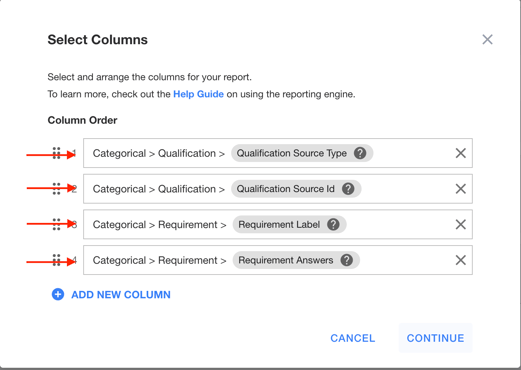
- To pull data from the driver's selection, you must choose the following data path:
Categorical>Qualifications>Qualifications Source Type
Categorical>Qualifications>Qualifications Source ID
Categorical>Requirements>Requirements Label
Categorical>Requirements>Requirements Answers
Step 3:
1. Once the report is configured, click Preview Report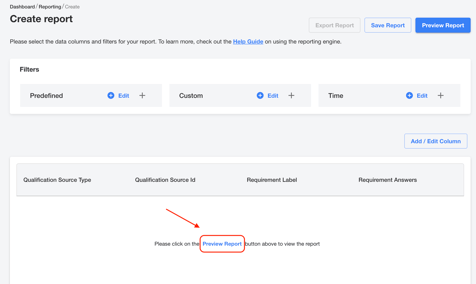
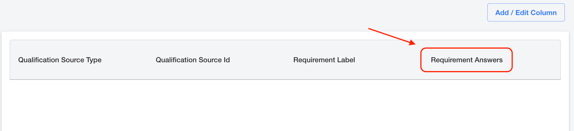
3. If the information is correct, you can download the completed report as a .CSV file for use in your accounting systems
Note: This data must be joined with the reservations report. To perform this cross-reference, the user must first create a reservations report including the Reservation ID. The join is established by matching the Qualification Source ID from this data to the Reservation ID in the reservations report.
Filter for Specific Information (Optional)
If your report is large and you only want to see a specific list of Cost Centers:
- Go to the report's filter options.

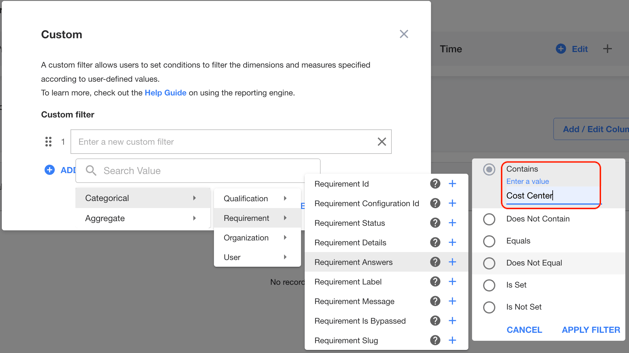
- Select the Categorical > Requirements Answers field as your primary filter.
- Write in the Contains space: Cost Center