-1.png?width=200&height=51&name=LM_NuBlu_Horiz_Hi%20(1)-1.png)
Once the reservation has been created and the date and time to start the reservation are appropriate, we can check in.
Reservation Check In
- The confirmation has been successfully processed.
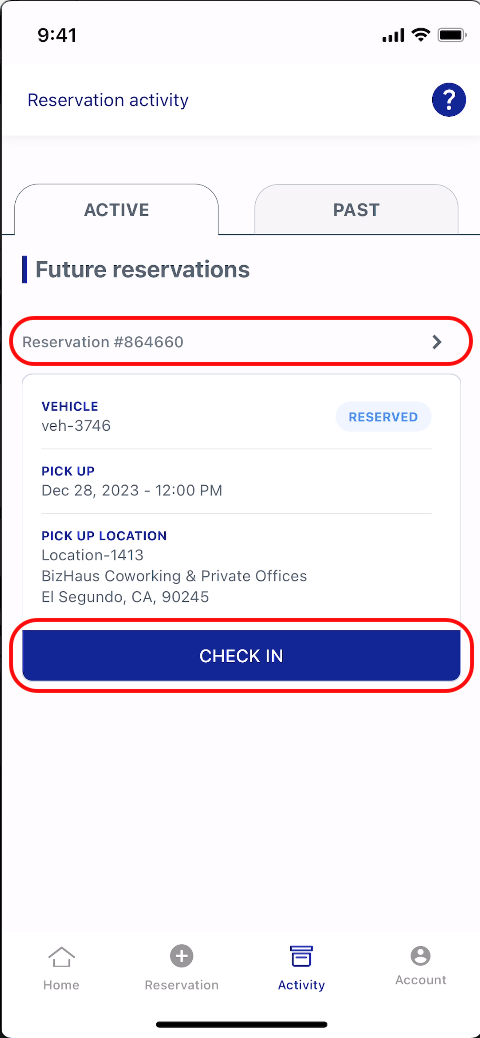
- You will now be redirected to the Reservation Activity screen, where the newly created reservation will be displayed under the Active tab.
- To check in, simply click on the reservation number above the details or select the Check In button.
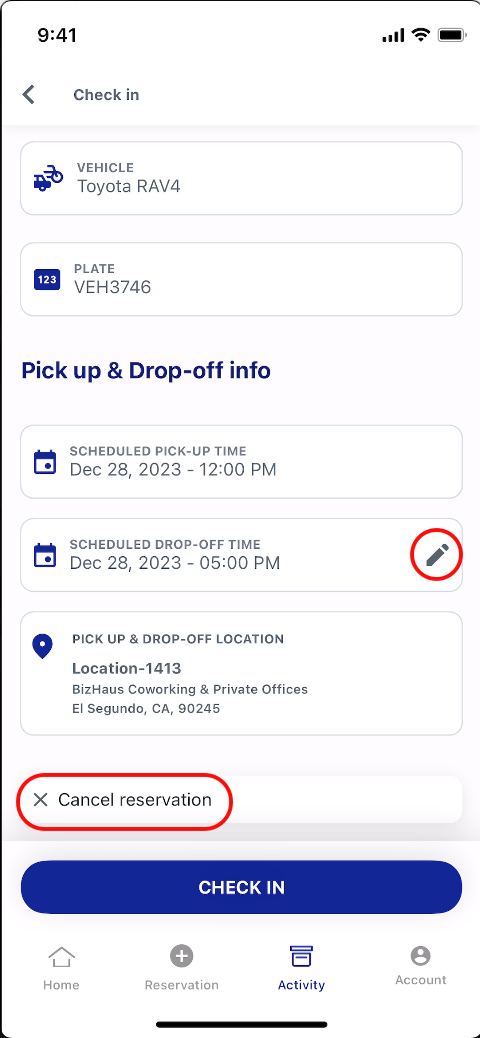
- On the Check-In screen, you'll find all the reservation details.
- Please take a moment to review them and ensure everything is correct.
If needed, you can adjust the drop-off time or cancel the reservation directly from this screen. - Once you're satisfied with the details, simply select Check In to complete the process.
Ongoing Reservation
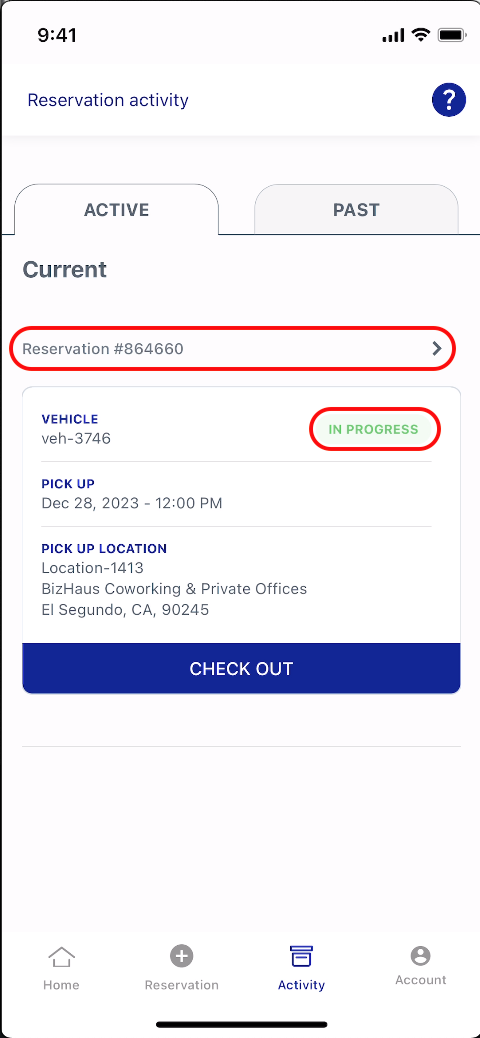
- You will be redirected to the Reservation Activity screen, where you'll see that the status of your reservation has been updated to In Progress.
- To view the details of your ongoing reservation, simply select the reservation number.
-
At this point, a virtual key has been created, and the device is now connected to the vehicle.
-
You can now use features like lock and unlock directly from the device.
-
Congratulations! You've successfully created and checked in to your ongoing reservation.
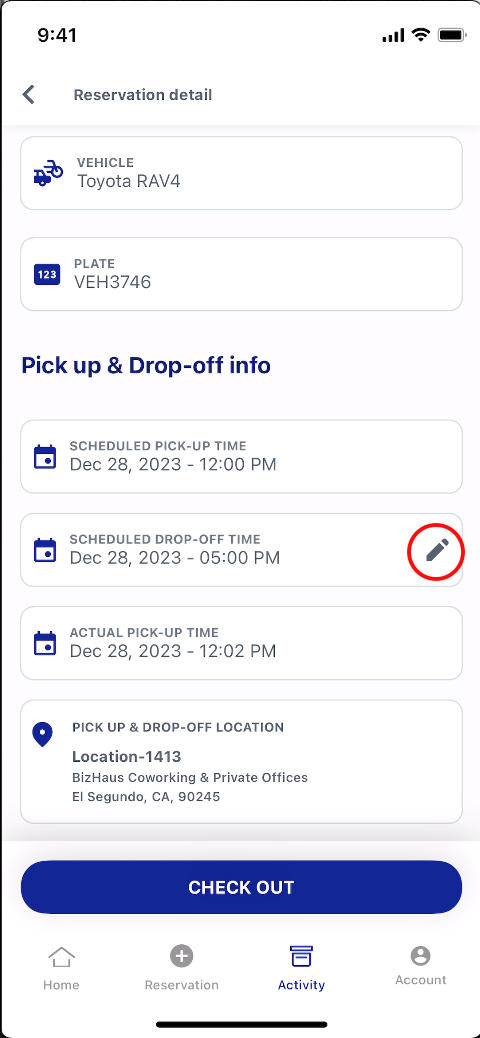
During your reservation, if no conflicting bookings are present, you can edit or extend your drop-off time. To do so, go to the Pick up & Drop-off Info section and select the edit icon.
Reservation Check Out
- Once your drop-off time has arrived, simply select the Check Out button to end the reservation.
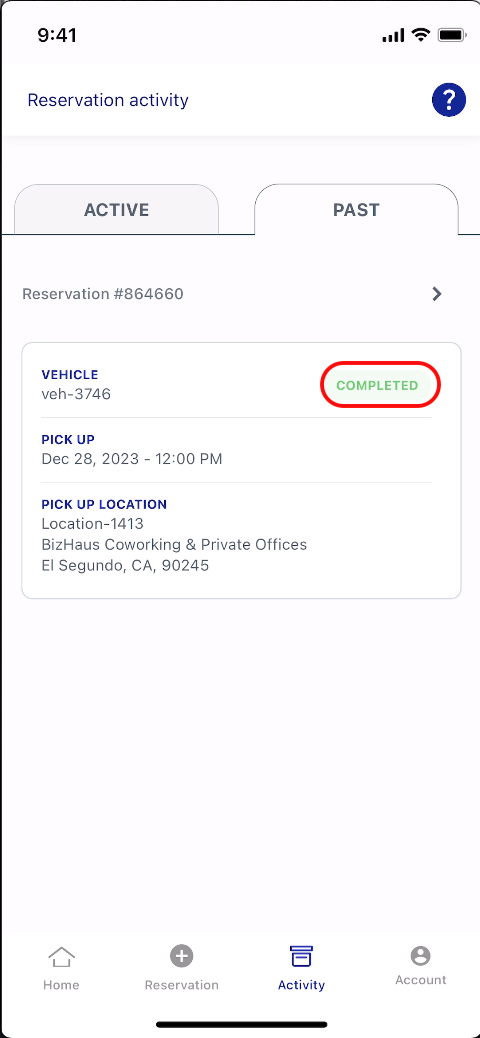
- You’ll then be redirected to the Reservation Activity screen, where your reservation will now appear under the Past tab with the status marked as Completed.