-1.png?width=200&height=51&name=LM_NuBlu_Horiz_Hi%20(1)-1.png)
Step 1: Navigate to the Reports Section
To begin, you need to access the reporting tools within your Mission Control environment:
-
Log in to your Mission Control admin account.
-
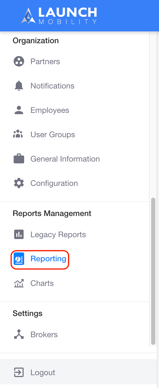
From the main menu, navigate to and select the Reports Management section.
-
Click on the Reporting menu to access the main reporting list screen.
Initiating Report Creation
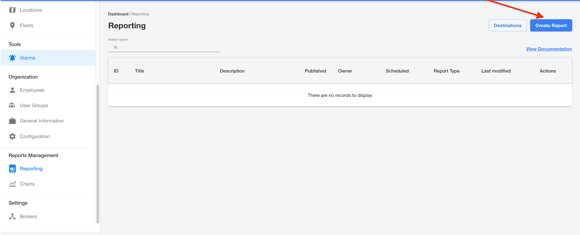
In the Reporting list screen, initiate the creation process to view your template options:
-
In the top right corner, click the "Create Report" button.
-
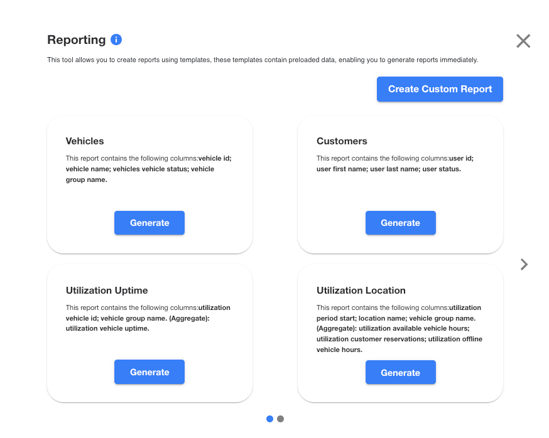
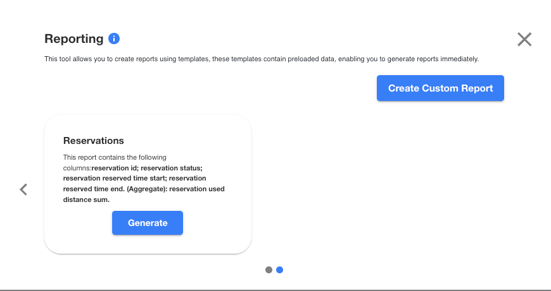
A pop-up window will appear with the five reporting templates: Vehicles, Customers, Utilization Uptime, Utilization Location, and Reservations.
Step 2: Select a Template to Proceed
From this pop-up window, you can choose a pre-made template instead of clicking "Create Custom Report." This immediately gives you a pre-configured report ready for filtering or saving.
You can choose from one of the five available Template Reports, each focused on a different business area:
|
Template Name |
Included Dimensions |
Included Aggregates |
|---|---|---|
|
Vehicles |
Vehicle ID Vehicle Name Vehicle Status Vehicle Group Name |
N/A |
|
Customers |
User ID User First Name User Last Name User Status |
N/A |
|
Utilization/Location (Summary) |
Utilization Vehicle ID Vehicle Group Name |
Utilization Vehicle Uptime |
|
Utilization/Location (Detail) |
Utilization Period Start Location Name Vehicle Group Name |
Utilization Available Vehicle Hours Utilization Customer Reservations Utilization Offline Vehicle Hours |
|
Reservations |
Reservation ID Reservation Status Reservation Reserved Time Start Reservation Reserved Time End |
Reservation Used Distance Sum |
Action: To proceed, click the "Generate" button at the bottom of the template you want. This action will take you to the Create Report screen with the report's pre-selected columns (dimensions and aggregates) already populated, allowing you to focus on applying filters and saving the report.
Tip: Using a template is the fastest way to start analyzing your data on commonly requested topics, saving you the time of manually selecting every dimension.