-1.png?width=200&height=51&name=LM_NuBlu_Horiz_Hi%20(1)-1.png)
Welcome to our mobile app! This guide will walk you through logging in for the first time and navigating the main features.
Important: You can download the Launch Mobility app at any time from the Apple App Store or Google Play Store. However, to protect your organization's security, you will not be able to log in until an administrator creates an account for you. Once they do, you will receive an email invitation with instructions on how to set your password.
First-Time Login
After you've set your password via the email invitation, you can log in to the app.
- Enter Your Email: Download the Launch Mobility app from your device's app store, open it, and enter the email address that received the invitation.
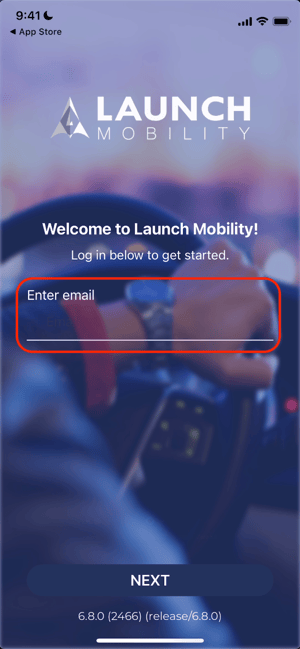
Note: If you receive an "email not found" error, please contact your organization's administrator. They can confirm the correct email address used for your account.
- Click Next.
- Confirm Your Service: The next screen confirms the service you are signing in to access.
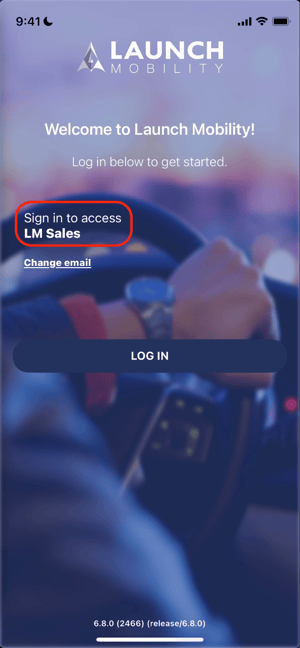
- Log In: If the service name is correct, tap LOG IN. You will then be prompted to enter your password to finish.
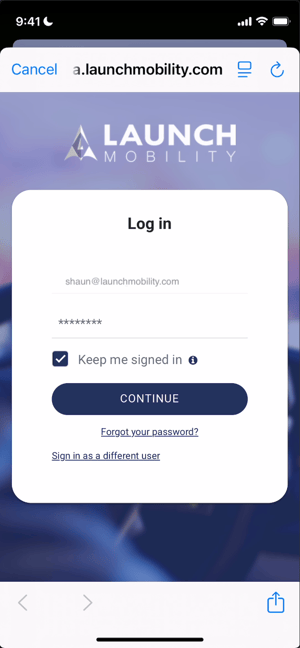
- Click CONTINUE to enter the app.
Navigating the App: The Main Screens
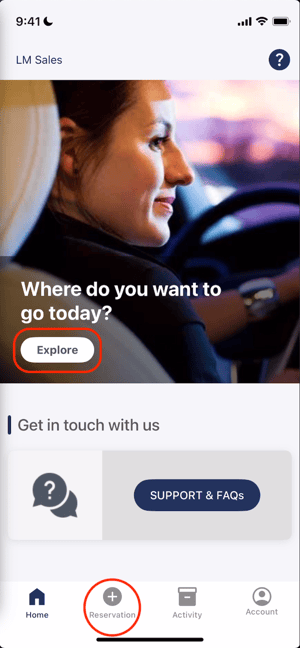
This is the main screen of the app. It provides a starting point for booking a vehicle and shows your current reservation status.
Explore Button: Tapping Explore begins the reservation creation flow. This has the same function as the Reservation icon in the navigation bar on the bottom of the screen.
The Reservation Screen
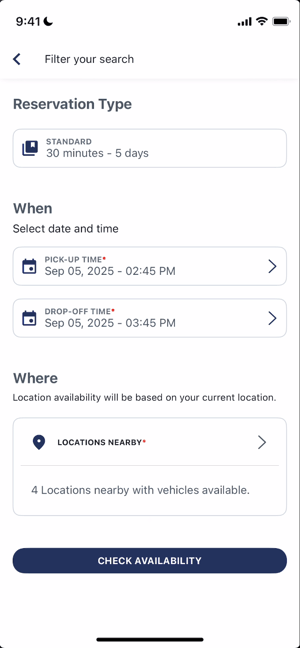
Tapping the Reservation icon or the Explore button will take you to the reservation screen. Here you will filter and search for an available vehicle.
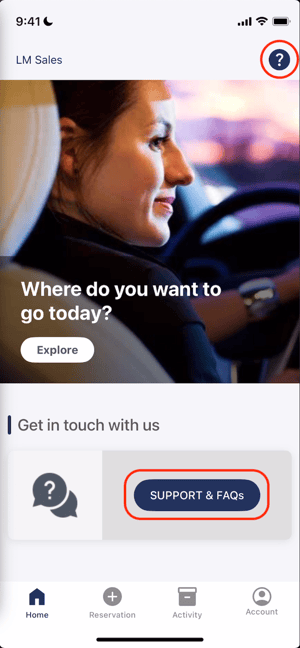
Help & Support: You can get help in two ways: by tapping the ? icon in the top-right corner or by tapping the SUPPORT & FAQs button. Both options will open a "Contact Us" screen with ways to get in touch.
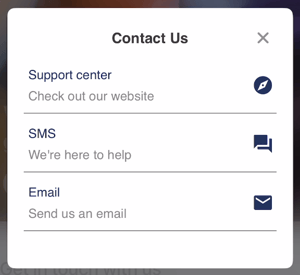
Important Note: The contact options on this screen will connect you with your organization's own support team, not with Launch Mobility.
The Activity Screen
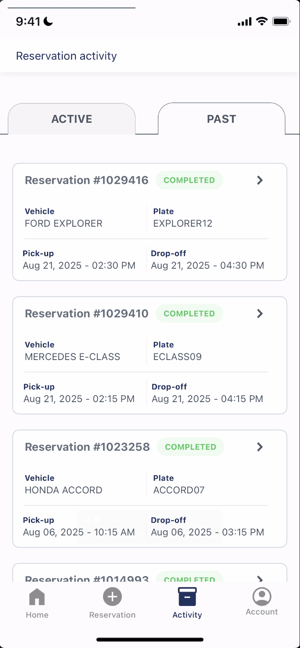
Tapping the Activity icon takes you to your reservation history.
- Active/Past Tabs: This screen is organized into two tabs. The Active tab shows any upcoming or in-progress reservations, while the Past tab shows a history of all your completed trips.
- Reservation Details: Tapping on any reservation card in the list will take you to a detailed summary of that trip. This screen shows the specific vehicle, pick-up/drop-off location, and a helpful breakdown of both your scheduled and actual trip times.
The Account Screen
Tapping the Account icon allows you to view and manage your profile and settings.
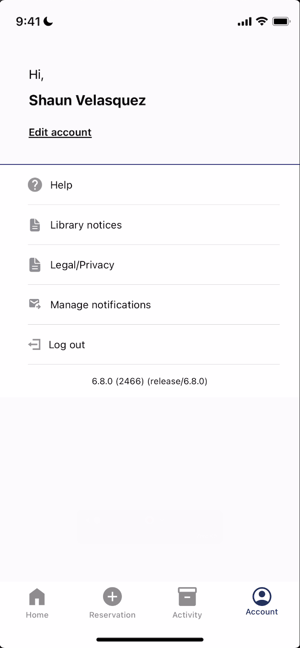
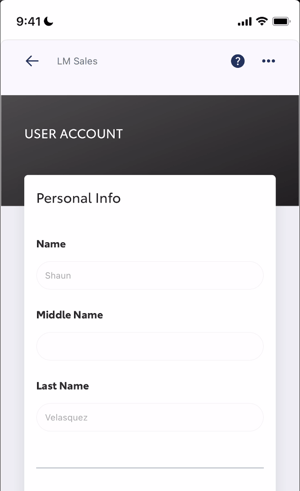
- Edit Account: Tapping this opens your user account details.
-
Personal Info: Displays your name as it was entered by your administrator. This information is read-only. If your name needs to be updated, you must contact your organization's administrator.
-
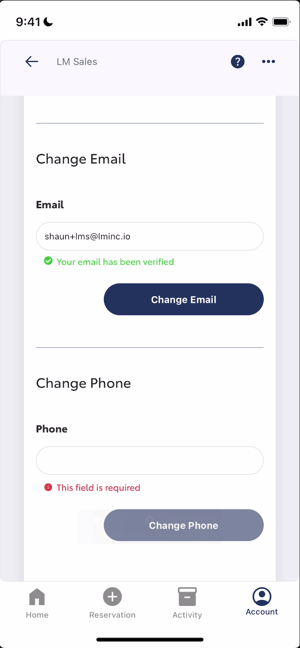
Change Email: You can update the email address associated with your account here. A verification will be required for the new address.
-
Change Phone: Add or edit your phone number here. A phone number is required to receive SMS notifications. This process requires verification via a code sent to your phone.
-
Change Password: Tapping this button will display fields for you to enter your current and new passwords.
-
Delete Account: This allows you to submit a request to have your account deleted. After you confirm, a notification is sent to your administrator to review your account's standing and process the deletion.
-
-
Help: This is another way to access the "Contact Us" screen and get in touch with your organization's support team.
-
Library notices: Displays a list of open-source licenses used in the app's development. This is standard legal information and doesn't affect your use of the app.
-
Legal/Privacy: This link opens your organization's privacy policy.
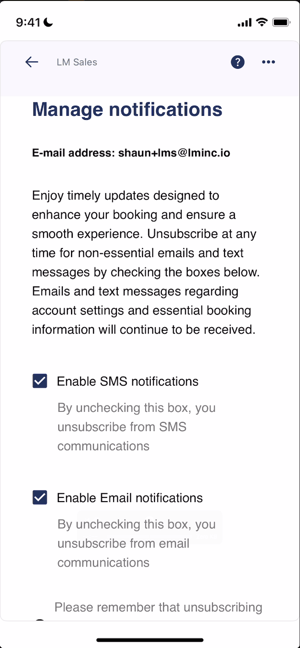
- Manage notifications: This screen allows you to opt out of non-essential SMS and email communications. You will still receive critical alerts related to your account and bookings.
- Log out: Tapping this will log you out of the app.
What's Next?
Now that you're familiar with the app's layout, the next step is to learn how to book your first vehicle.
➡️ See our guide: How to Create a Reservation in the Mobile App